

Log Explorer
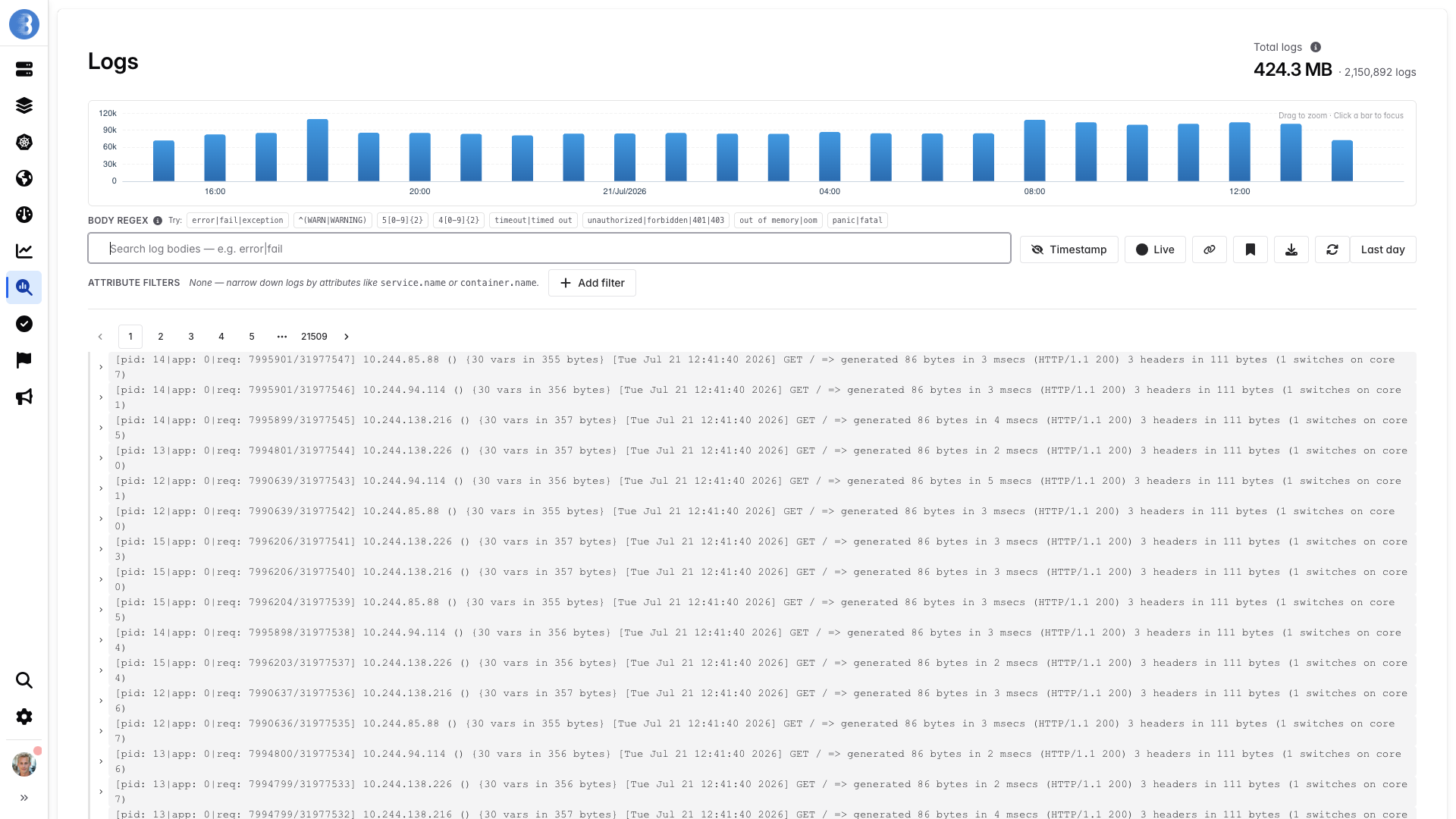
Once Glouton ships logs to the Bleemeo Cloud Platform, you can browse and search them from the Logs page of the Bleemeo panel. The page shows the log volume over time, a search bar, attribute filters, and the matching log lines.
Choose the time range
Section titled “Choose the time range”The period selector, next to the refresh button, sets the time range of the whole page. It defaults to the last 24 hours and offers relative periods (last hour, last day…) as well as a custom absolute range. Relative periods are limited to the log retention of your account.
The Total logs counter in the top-right corner shows the size and the number of logs sent during the selected period, with the current search and filters applied.
If the period is too large for the search to complete, the page asks you to narrow the time range and add filters.
Read the volume histogram
Section titled “Read the volume histogram”The histogram above the search bar shows the number of logs per hour for the selected period, with the current search and filters applied. Hover a bar to see its count. To focus on a moment:
- Click a bar to narrow the period to that hour.
- Drag across the chart to zoom on a custom range.
- Use Reset zoom to come back to the period you were looking at before zooming.
Search log bodies
Section titled “Search log bodies”The Body regex field filters the log lines whose body matches a regular expression. The search is case-insensitive, and ANSI color codes in the log body are ignored. Matches are highlighted in the results.
When the field is empty, a few ready-made patterns are suggested below its label. Click one to apply it:
| Pattern | Finds |
|---|---|
error|fail|exception |
Errors |
^(WARN|WARNING) |
Warnings only |
5[0-9]{2} |
HTTP 5xx responses |
4[0-9]{2} |
HTTP 4xx responses |
timeout|timed out |
Timeouts |
unauthorized|forbidden|401|403 |
Authentication failures |
out of memory|oom |
Out of memory |
panic|fatal |
Panics and fatal errors |
An invalid expression is outlined in red and is not applied until you fix it.
Filter on attributes
Section titled “Filter on attributes”Each log carries attributes: the log attributes set by the collection pipeline (for instance the file path or the container name) and the resource attributes describing where the log comes from (for instance the host or the service). Use Attribute filters to restrict the results on them:
- Click Add filter in the Attribute filters row.
- Select an attribute. The list only contains attributes present in the logs of the selected period.
- Choose an operator and a value:
=keeps the logs where the attribute has the selected value.!=excludes the logs where the attribute has the selected value..*keeps the logs where the attribute value matches a regular expression.
Filters are combined: a log is displayed only if it matches all of them, and the body regex. Each active filter is shown as a chip; click its cross to remove it.
Inspect a log line
Section titled “Inspect a log line”Each line shows the log body, with a severity badge (CRITICAL, ERROR, WARN, INFO
or DEBUG) when one can be detected. The severity comes from a severity or severity_text
attribute when the log has one, and otherwise from keywords at the start of the body.
Click a line to expand it and see all its attributes. Click any attribute value to add it as a
filter with the = operator: this is the quickest way to narrow the results to one host,
container or service.
Use the Timestamp toggle in the toolbar to show or hide the timestamp of each line. Timestamps are displayed in your browser’s time zone, with the GMT offset made explicit since your servers may run in other time zones. The setting is remembered by your browser.
Results are paginated with 100 logs per page, newest first.
Follow logs in real time
Section titled “Follow logs in real time”Turn on the Live toggle to refresh the histogram and the log lines every 10 seconds. A pulsing indicator in the top-right corner shows how long ago the last refresh happened.
Live tail only works with a relative period such as the last hour: it is switched off when you select an absolute range or zoom on the histogram. It also pauses while the browser tab is in the background, and resumes when you come back to it.
Share and save searches
Section titled “Share and save searches”The time range, the body regex, the attribute filters and the page number are all stored in the URL of the page:
- The link button copies a permalink to the current search, to share it with a teammate or paste it in an incident ticket.
- The bookmark button opens your saved searches. Use Save current search… and give it a name to keep the current body regex and attribute filters, then click a saved search to load it back. A saved search does not store the time range or the page, so it always applies to the period you are currently looking at. A removed search can be restored with Undo for a few seconds.
Export logs
Section titled “Export logs”The export button downloads the logs currently displayed, that is the current page of
results, as a file named bleemeo-logs-<date>:
- Download as JSON exports each log with all its fields.
- Download as CSV exports one row per log, ready for a spreadsheet.
To export more logs, narrow the search or the time range, or use the Bleemeo API.
Logs on a dashboard
Section titled “Logs on a dashboard”To keep an eye on a set of logs next to your graphs, add a Logs widget to a custom dashboard. The widget takes the same body regex and attribute filters as the Logs page, can be restricted to a single agent, and displays up to 250 lines (Max lines, 100 by default).