

On-Call
On-Call Schedules in Bleemeo automate the rotation of team members responsible for responding to monitoring alerts. They ensure that notifications are always routed to the right person at the right time, eliminating the need to manually update notification targets when on-call duties rotate.
What is an On-Call Schedule?
Section titled “What is an On-Call Schedule?”An On-Call Schedule is a time-based rotation system that defines:
- Who is on-call at any given time
- When their on-call shift starts and ends
- How the rotation cycles (daily, weekly, custom)
- Where notifications should be sent during their shift
Edit On-Call
Section titled “Edit On-Call”The On-Call Schedule editor provides a visual calendar interface to manage your team’s rotation and escalation policies.
Calendar View
Section titled “Calendar View”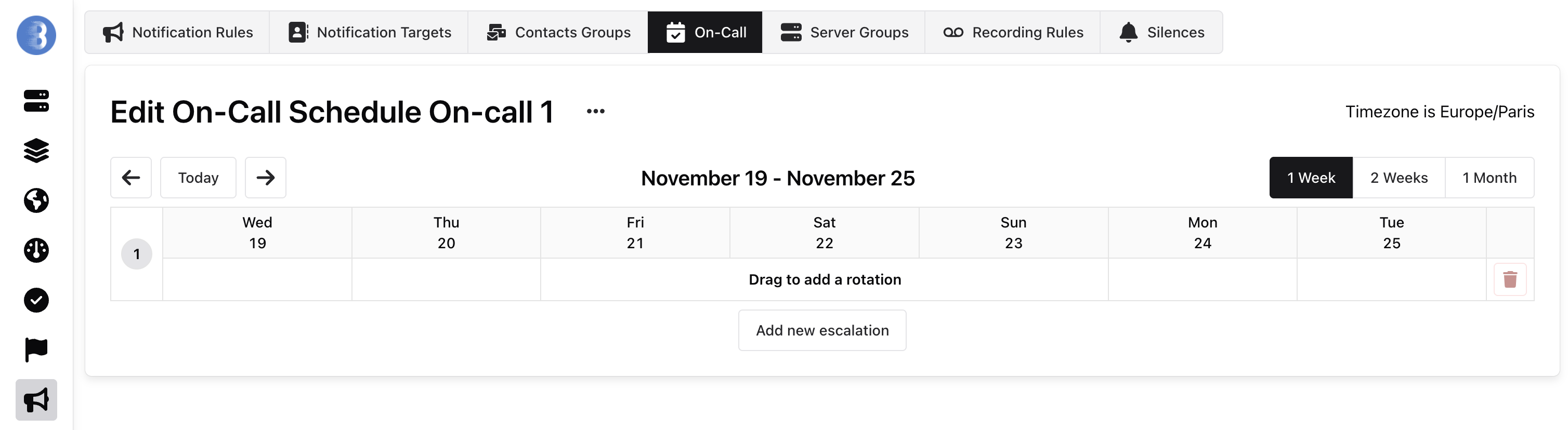
The schedule opens on the current calendar week, with one timeline per escalation level. In the header you can:
- Pick the period shown with the view selector: 1 Day (one column per hour, with out-of-office hours shaded), 1 Week, 2 Weeks or 4 Weeks.
- Move to the previous or next period with the arrows, jump to a date, or come back with Today. Past periods stay reachable.
- Switch between the Timeline view and the Agenda view, which lists the rotations and the coverage gaps chronologically. From a gap, Fill this gap opens the rotation form on that period.
- See the timezone used to display the times (Times shown in …).
- Add to my calendar downloads the displayed period as an
.icsfile you can import in your calendar application.
The view and the period are kept in the page URL, so a link opens the same period for a teammate. The calendar follows the clock and picks up the rotations added by teammates within a minute, without reloading the page.
A banner at the top shows who is on call now, until when, and who takes over next.
Coverage
Section titled “Coverage”Above the rotations of each escalation level, a coverage bar shows when somebody would be paged:
- Covered (green): a rotation or an override is active.
- Nobody on call (red, hatched): a gap in the coming days, nobody would receive the alert.
- Not planned yet (grey): a gap more than two weeks ahead, which is planning left to do rather than an incident.
The level header shows the covered percentage of the displayed period, lists the remaining gaps, and reports the periods where two rotations overlap.
The list of on-call schedules shows, for each schedule, who is on call now and until when (or when the next rotation starts), and the coverage of the next seven days.
Managing Rotations
Section titled “Managing Rotations”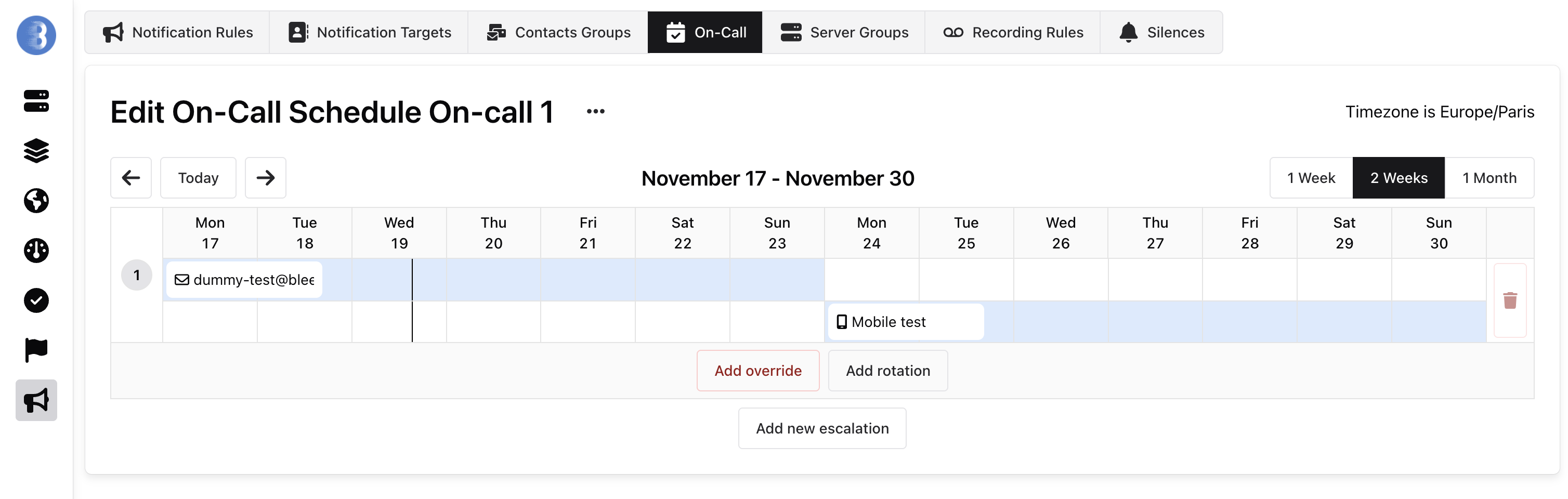
Rotations define who is on call during a period. When nothing is planned yet, the calendar is replaced by a card offering Add a rotation and Generate a recurring rotation. Then you can:
- Add a rotation: drag over the days (or the hours in the 1 Day view) of a level, or use Add rotation. In the form, Who is notified lists contacts groups and notification targets in one searchable list, and presets set the length of the shift.
- Move or resize a rotation: drag a rotation to move it, or drag its edges to change its start or end. Hold Alt while dragging to duplicate it instead. The confirmation offers an Undo.
- Edit a rotation: click it to open the rotation form.
- Generate recurring rotation: pick the participants and their order, when the First shift starts, how long Each shift lasts and Repeat until when. The preview lists the generated shifts, alternating between participants, and warns about the shifts that would overlap existing rotations.
- Add override: temporarily replace who is on call, for vacation coverage or schedule swaps. The stretch of the rotation an override replaces is hatched out: that part of the rotation no longer notifies.
Successive shifts share one row on the timeline, so a month of daily hand-offs stays readable. A rotation stops notifying at the exact minute it ends.
Read-only users can browse the calendar, but can’t add, move or delete rotations.
Escalation Policies
Section titled “Escalation Policies”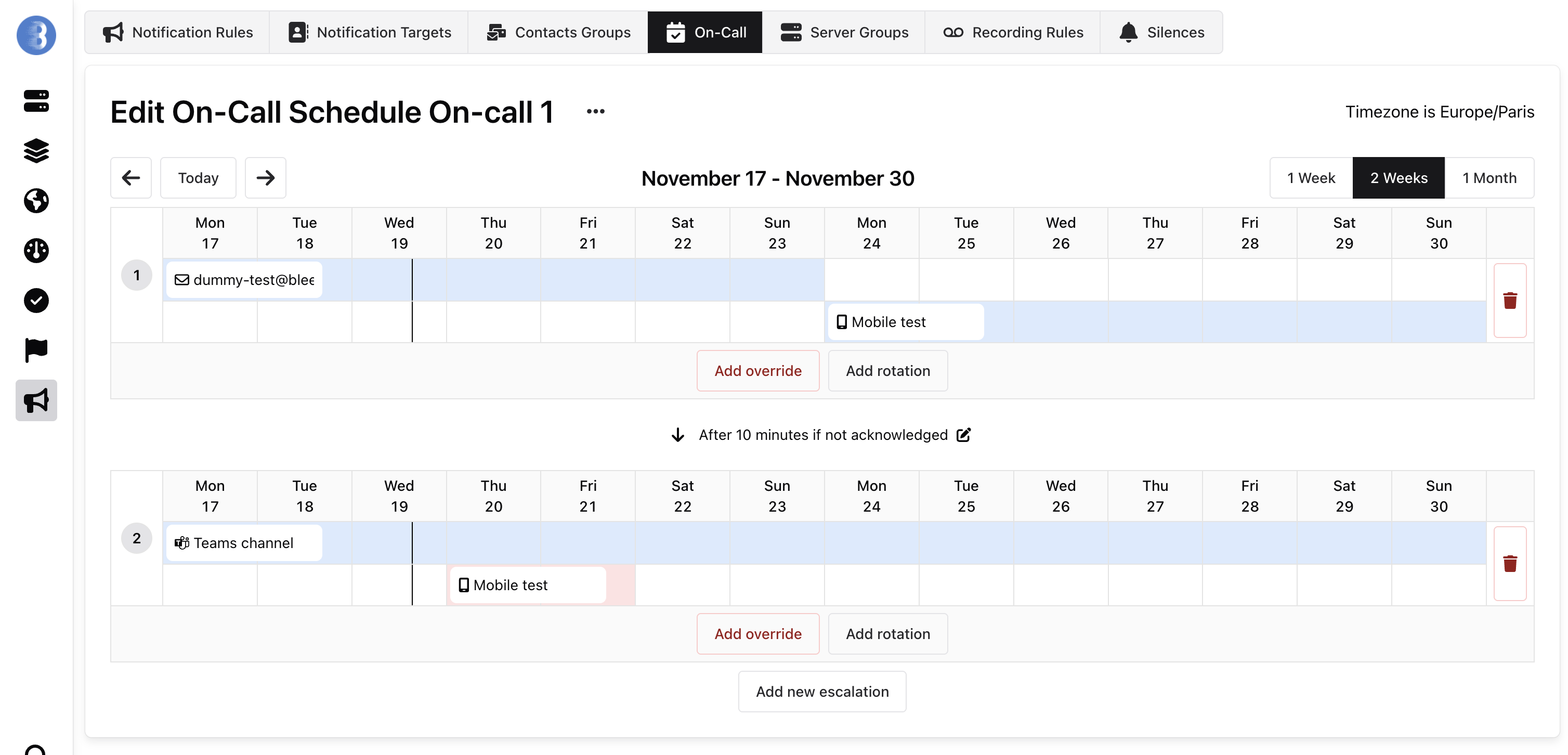
Escalation policies ensure alerts reach someone even if the primary on-call person doesn’t respond:
- Multiple escalation levels: create a chain of notifications that progressively reach more people or teams. Use Add new escalation to add a level.
- Escalation delay: between two levels, a connector shows the delay after which, without acknowledgement, the alert escalates to the next level. Click it to change the delay, in minutes or hours (from one minute up to 23 h 59).
- Mixed targets: combine different notification methods (email, mobile, Teams channels, etc.) at each escalation level.
In this example, if an alert isn’t acknowledged within 10 minutes, it escalates to a second level notifying both a Teams channel and a mobile contact.