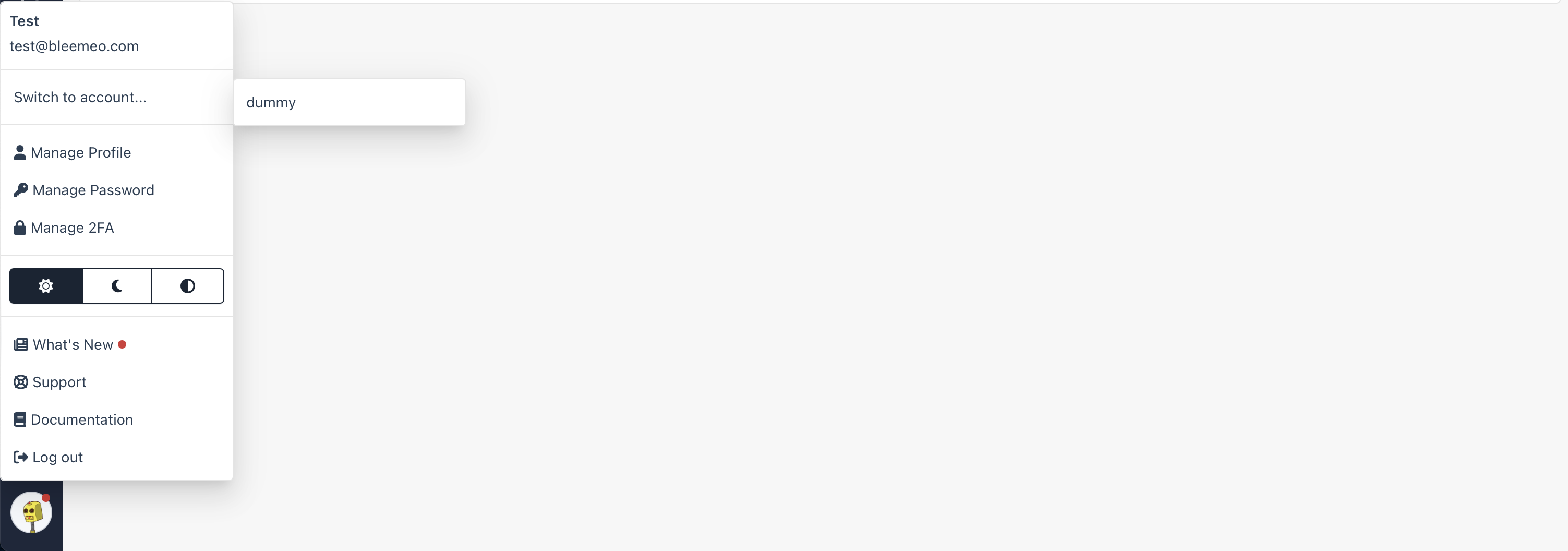
Bleemeo allows you to invite team members to your account and control what they can access. Each user can have different permissions based on their role.
The new user receives an email with instructions to set their password. By default, new users have no assigned roles—you’ll need to add permissions manually.
To change permissions:
Click on the user’s email address
Use the Grant Admin / Revoke Admin buttons
Use the Grant Manager / Revoke Manager buttons
Multi-Account Access
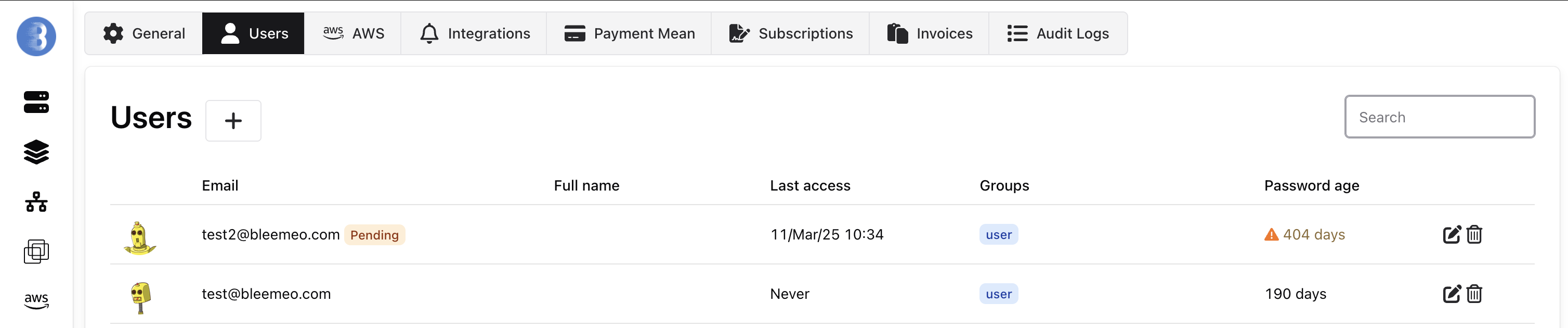
A single email address can belong to multiple Bleemeo accounts. When you add an existing user’s email to your account, they’ll see an account switcher after logging in.
This is useful for consultants, MSPs, or team members who manage infrastructure across multiple organizations.
Two-Factor Authentication
Secure your account with two-factor authentication (2FA). Bleemeo supports multiple methods:
| Method | Description |
|--------|-------------|
| Token Generator | Time-based codes from apps like Google Authenticator or FreeOTP |
| Phone Call | Automated voice call that reads a verification code |
| Text Message | SMS with a verification code |
| YubiKey | Hardware security key from Yubico |
To enable 2FA:
Click your username in the top-right corner
Select Two Factor Authentication
Click Enable Two-Factor Authentication
Follow the setup wizard
Backup Recovery Methods
If you lose access to your 2FA device, you’ll need a backup method to recover your account.
Backup Phone Number
Add a secondary phone number to receive verification codes via call or SMS.
Backup Tokens
Generate one-time recovery codes and store them securely. Each code can only be used once. Regenerating tokens invalidates all previous codes.
To disable 2FA:
Click the Disable Two-Factor Authentication button in your 2FA settings. This removes all configured authentication methods.