Skip to content

Agent Installation

The Bleemeo solution uses an agent running on your system. Even though the agent uses standard tools as much as possible, not all systems meet our requirements.

Supported systems are:

SystemVersion RequiredInstallation Doc
Ubuntu26.04 (Resolute Raccoon), 25.10 (Questing Quokka), 25.04 (Plucky Puffin), 24.04 (Noble Numbat), 22.04 (Jammy Jellyfish), 20.04 (Focal Fossa), 18.04 (Bionic Beaver), 16.04 (Xenial Xerus)Bleemeo Agent Installation
Debian13 (Trixie), 12 (Bookworm), 11 (Bullseye), 10 (Buster), 9 (Stretch), 8 (Jessie)Bleemeo Agent Installation
CentOS8, 7Bleemeo Agent Installation
Red Hat Enterprise Linux10, 9, 8, 7Bleemeo Agent Installation
Fedora43, 42, 41, 40, 39, 38, 37, 36, 35, 34, 33Bleemeo Agent Installation
AlmaLinux10, 9, 8Bleemeo Agent Installation
CloudLinux9, 8Bleemeo Agent Installation
Oracle Linux10, 9, 8Bleemeo Agent Installation
Rocky Linux10, 9, 8Bleemeo Agent Installation
Proxmox VE9, 8, 7Installation on Proxmox
Proxmox Backup ServerAll versionsInstallation on Proxmox
DockerAny platform with Docker 20.10 or laterInstall Agent Using Docker
KubernetesAny platform with Kubernetes 1.24 or laterInstall Agent on Kubernetes
LinuxAny Linux with Kernel >= 3.2Manual Installation
TrueNAS CORE13, 12Bleemeo Agent Installation
TrueNAS SCALE25.10, 25.04, 24.10, 24.04Installation on TrueNAS SCALE
WindowsServer 2022, Server 2019, Server 2016, Server 2012, Server 2008R2, 11, 10, 8, 7Install Agent on Windows
ResourceUsage
Architectureamd64, i386, armhf, arm64
Disk spaceabout 50 MB
Memory70-80 MB
CPU usage~3% on modern amd64, ~5% on Raspberry Pi 4

The Bleemeo agent communicates with the Bleemeo Cloud using HTTPS and MQTT-SSL. Only the agent initiates the connections. Your firewall needs to allow the agent to open connections for both protocols:

  • HTTPS uses TCP port 443 on api.bleemeo.com
  • MQTT-SSL uses TCP port 8883 on mqtt.bleemeo.com

The api.bleemeo.com and mqtt.bleemeo.com hostnames are stable, but the IP addresses they resolve to may change in the future, so prefer hostname-based firewall rules when possible.

Before installing the Bleemeo agent, please check that you meet the system requirements.

This method only works on Linux and TrueNAS CORE, see below for TrueNAS SCALE.

To install the Bleemeo agent with our official install script:

  • Log in to your Bleemeo account and go to the home page.
  • Run the wget -qO- "https://get.bleemeo.com?accountId=<YOUR_ACCOUNT_ID>&registrationKey=<YOUR_REGISTRATION_KEY>" | sh command on your server. When administrator privileges are required, you will be asked to enter your su or sudo password.
  • The agent is installed and configured for your Bleemeo account. You can check it in the agent list.

We recommend using our shell script, which handles the installation for you:

Terminal window
wget -qO- "https://get.bleemeo.com?accountId=<YOUR_ACCOUNT_ID>&registrationKey=<YOUR_REGISTRATION_KEY>" | sh

On Linux, this command will:

  • add the Bleemeo package repositories.
  • create the configuration file for your account.
  • enable auto-upgrade of the Bleemeo agent.

If you would rather inspect the script before running it, download it first:

Terminal window
wget -O get-bleemeo.sh "https://get.bleemeo.com?accountId=<YOUR_ACCOUNT_ID>&registrationKey=<YOUR_REGISTRATION_KEY>"
less get-bleemeo.sh
sh get-bleemeo.sh

If you want to execute those steps manually, look at:

For automated deployment at scale, see Automated Agent Mass Installation which provides ready-to-use Ansible, Puppet and Chef configurations.

Installation on Debian/Ubuntu with native packages

Section titled “Installation on Debian/Ubuntu with native packages”

Before installing the Bleemeo agent, please check that you meet the system requirements.

The agent works with your native packaging tools. For Debian/Ubuntu, the agent uses APT and deb packages.

The agent needs your credentials. Get them from the Bleemeo Panel by clicking “Connect your first server to Bleemeo platform”, then add them to /etc/glouton/conf.d/30-install.conf:

Terminal window
sudo mkdir -p /etc/glouton/conf.d
sudo tee /etc/glouton/conf.d/30-install.conf << EOF
bleemeo:
account_id: YOUR_ACCOUNT_ID
registration_key: YOUR_REGISTRATION_KEY
EOF
sudo chmod 640 /etc/glouton/conf.d/30-install.conf

Our package repository is signed with the following GPG key:

pub 4096R/FC23F27E 2015-11-25
Key fingerprint = 9B8B DA4B E10E 9F23 28D4 0077 E848 FD17 FC23 F27E
uid Bleemeo Packaging Team <packaging-team@bleemeo.com>

Download the Bleemeo keyring:

Terminal window
curl -fsSL https://packages.bleemeo.com/bleemeo-agent/bleemeo-keyring.asc | \
sudo gpg --dearmor -o /etc/glouton/bleemeo-keyring.gpg

Our repositories are available over HTTPS. Make sure APT is configured to support it:

Terminal window
sudo apt-get install apt-transport-https

Add our repository for your distribution. lsb_release -cs picks the right codename automatically (e.g. noble on Ubuntu 24.04, bookworm on Debian 12):

Terminal window
sudo tee /etc/apt/sources.list.d/bleemeo-agent.sources << EOF
Types: deb
URIs: https://packages.bleemeo.com/bleemeo-agent/
Suites: $(lsb_release -cs)
Components: main
Signed-By: /etc/glouton/bleemeo-keyring.gpg
EOF

Finally, install the Bleemeo agent package:

Terminal window
sudo apt-get update
sudo apt-get install bleemeo-agent

To enable the optional auto-upgrade feature of the Bleemeo agent:

Terminal window
sudo systemctl enable --now glouton-auto-upgrade.timer

Installation on Proxmox with native packages

Section titled “Installation on Proxmox with native packages”

Before installing the Bleemeo agent, please check that you meet the system requirements.

Proxmox VE and Proxmox Backup Server are based on Debian, so the agent uses APT and deb packages.

The agent needs your credentials. Get them from the Bleemeo Panel by clicking “Connect your first server to Bleemeo platform”, then add them to /etc/glouton/conf.d/30-install.conf:

Terminal window
sudo mkdir -p /etc/glouton/conf.d
sudo tee /etc/glouton/conf.d/30-install.conf << EOF
bleemeo:
account_id: YOUR_ACCOUNT_ID
registration_key: YOUR_REGISTRATION_KEY
EOF
sudo chmod 640 /etc/glouton/conf.d/30-install.conf

Our package repository is signed with the following GPG key:

pub 4096R/FC23F27E 2015-11-25
Key fingerprint = 9B8B DA4B E10E 9F23 28D4 0077 E848 FD17 FC23 F27E
uid Bleemeo Packaging Team <packaging-team@bleemeo.com>

Download the Bleemeo keyring:

Terminal window
curl -fsSL https://packages.bleemeo.com/bleemeo-agent/bleemeo-keyring.asc | \
sudo gpg --dearmor -o /etc/glouton/bleemeo-keyring.gpg

Our repositories are available over HTTPS. Make sure APT is configured to support it:

Terminal window
sudo apt-get install apt-transport-https

Add our repository. lsb_release -cs picks the right Debian codename automatically for your Proxmox version:

  • Proxmox VE 9 and Proxmox Backup Server 4: trixie (Debian 13)
  • Proxmox VE 8 and Proxmox Backup Server 3: bookworm (Debian 12)
  • Proxmox VE 7 and Proxmox Backup Server 2: bullseye (Debian 11)
Terminal window
sudo tee /etc/apt/sources.list.d/bleemeo-agent.sources << EOF
Types: deb
URIs: https://packages.bleemeo.com/bleemeo-agent/
Suites: $(lsb_release -cs)
Components: main
Signed-By: /etc/glouton/bleemeo-keyring.gpg
EOF

Finally, install the Bleemeo agent package:

Terminal window
sudo apt-get update
sudo apt-get install bleemeo-agent

To enable the optional auto-upgrade feature of the Bleemeo agent:

Terminal window
sudo systemctl enable --now glouton-auto-upgrade.timer

Installation on Red Hat Enterprise Linux family with native packages

Section titled “Installation on Red Hat Enterprise Linux family with native packages”

Before installing the Bleemeo agent, please check that you meet the system requirements.

This section covers Red Hat Enterprise Linux, CentOS, AlmaLinux, Rocky Linux, Oracle Linux and CloudLinux, which all share the same RPM packages.

The agent needs your credentials. Get them from the Bleemeo Panel by clicking “Connect your first server to Bleemeo platform”, then add them to /etc/glouton/conf.d/30-install.conf:

Terminal window
sudo mkdir -p /etc/glouton/conf.d
sudo tee /etc/glouton/conf.d/30-install.conf << EOF
bleemeo:
account_id: YOUR_ACCOUNT_ID
registration_key: YOUR_REGISTRATION_KEY
EOF
sudo chmod 640 /etc/glouton/conf.d/30-install.conf

Add our repository. $releasever is auto-detected by yum/dnf and resolves to your distribution major version (7, 8, 9, 10):

Terminal window
sudo tee /etc/yum.repos.d/bleemeo.repo << "EOF"
[bleemeo-agent-repo]
name=Bleemeo Agent Repository
baseurl=https://packages.bleemeo.com/bleemeo-agent/centos/$releasever/$basearch/
enabled=1
gpgcheck=1
gpgkey=https://packages.bleemeo.com/bleemeo-agent/centos/gpg
EOF

Finally, install the Bleemeo agent package:

Terminal window
sudo yum -y install bleemeo-agent

To enable the optional auto-upgrade feature of the Bleemeo agent:

Terminal window
sudo systemctl enable --now glouton-auto-upgrade.timer

Installation on Fedora with native packages

Section titled “Installation on Fedora with native packages”

Before installing the Bleemeo agent, please check that you meet the system requirements.

The agent works with your native packaging tools. For Fedora, the agent uses rpm packages.

The agent needs your credentials. Get them from the Bleemeo Panel by clicking “Connect your first server to Bleemeo platform”, then add them to /etc/glouton/conf.d/30-install.conf:

Terminal window
sudo mkdir -p /etc/glouton/conf.d
sudo tee /etc/glouton/conf.d/30-install.conf << EOF
bleemeo:
account_id: YOUR_ACCOUNT_ID
registration_key: YOUR_REGISTRATION_KEY
EOF
sudo chmod 640 /etc/glouton/conf.d/30-install.conf

Add our repository for your distribution:

Terminal window
sudo tee /etc/yum.repos.d/bleemeo.repo << "EOF"
[bleemeo-agent-repo]
name=Bleemeo Agent Repository
baseurl=https://packages.bleemeo.com/bleemeo-agent/fedora/$releasever/$basearch/
enabled=1
gpgcheck=1
gpgkey=https://packages.bleemeo.com/bleemeo-agent/fedora/gpg
EOF

Finally, install the Bleemeo agent package:

Terminal window
sudo dnf -y install bleemeo-agent

To enable the optional auto-upgrade feature of the Bleemeo agent:

Terminal window
sudo systemctl enable --now glouton-auto-upgrade.timer

We recommend installing the agent using the standard method, or following these instructions if you use Docker. If neither method fits your needs, see the manual method, which explains how to install the Bleemeo agent with standard tools.

Before installing the Bleemeo agent, please check that you meet the system requirements.

Bleemeo provides official images on Docker Hub.

To deploy your agent, you can use either docker compose or the docker run command.

You need to get the Docker compose file.

Edit the docker-compose file and set the values for GLOUTON_BLEEMEO_ACCOUNT_ID and GLOUTON_BLEEMEO_REGISTRATION_KEY, for example:

[...]
environment:
- GLOUTON_BLEEMEO_ACCOUNT_ID=91bd2bba-ad84-40eb-9eff-07e5a961285a
- GLOUTON_BLEEMEO_REGISTRATION_KEY=199390d7-8fc7-4a06-b3eb-53e574f5c7a0
[...]

Then run Docker Compose:

Terminal window
docker compose pull
docker compose up -d

The Bleemeo agent requires some special options to monitor your Docker host and other Docker containers:

Terminal window
export GLOUTON_BLEEMEO_ACCOUNT_ID=<YOUR-ACCOUNT-ID>
export GLOUTON_BLEEMEO_REGISTRATION_KEY=<YOUR-REGISTRATION-KEY>
docker pull bleemeo/bleemeo-agent
docker run -d --name="bleemeo-agent" --restart unless-stopped \
-v /var/lib/glouton:/var/lib/glouton -v /var/run/docker.sock:/var/run/docker.sock -v /:/hostroot:ro \
-e GLOUTON_BLEEMEO_ACCOUNT_ID -e GLOUTON_BLEEMEO_REGISTRATION_KEY \
--pid=host --net=host --cap-add SYS_PTRACE --cap-add SYS_ADMIN bleemeo/bleemeo-agent

Installation on TrueNAS SCALE as custom application

Section titled “Installation on TrueNAS SCALE as custom application”

TrueNAS SCALE lets you install a custom application, which is the method we use to install the Bleemeo agent.

In the TrueNAS SCALE UI, go to:

  • Apps
  • Discover Apps
  • Then click on the three dots to the right of “Custom App” and choose “Install via YAML”

On this screen:

  • Enter the application name: bleemeo-agent
  • Enter the following YAML, replacing the placeholders for the account ID and registration key:
services:
glouton:
cap_add:
- SYS_PTRACE
- SYS_ADMIN
environment:
- GLOUTON_BLEEMEO_ACCOUNT_ID=<REPLACE WITH YOUR ACCOUNT ID>
- GLOUTON_BLEEMEO_REGISTRATION_KEY=<REPLACE WITH YOUR REGISTRATION KEY>
image: bleemeo/bleemeo-agent
pull_policy: always
network_mode: host
pid: host
privileged: true
restart: unless-stopped
volumes:
- glouton-state:/var/lib/glouton
- /var/run/docker.sock:/var/run/docker.sock
- /:/hostroot:ro
volumes:
glouton-state: {}
  • You can find the account ID and registration key in the connect another server modal.
  • Save to install and start the Bleemeo agent.

Before installing the Bleemeo agent, please check that you meet the system requirements.

The Bleemeo agent can be installed on Windows with a classic installer. An unattended installation is also available.

Download the installer on Bleemeo.

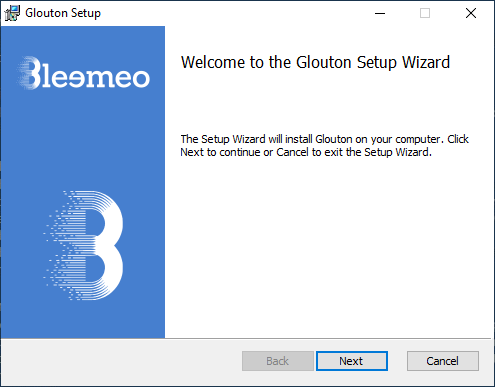
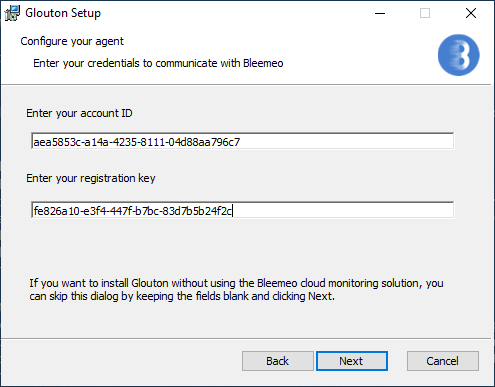
Run the installer. A wizard will ask you to enter your account ID and registration key, as shown below:

windows step 1 windows step 2

You can download the installer with curl (Windows 10 or later):

Terminal window
curl -s https://packages.bleemeo.com/bleemeo-agent/windows/bleemeo-agent_latest.msi -o bleemeo-agent_latest.msi

The installer can be run with an option to hide the wizard (this is useful if you are deploying on several servers). Run the following command as administrator on your server:

Terminal window
msiexec /i bleemeo-agent_latest.msi ACCOUNT="my_account_id" REGKEY="my_registration_key" /qr

Replace your account ID and registration key in the command above.

After the agent finishes installing, confirm it is running and registered.

On Linux (systemd):

Terminal window
sudo systemctl status glouton

On Windows, open the Services panel and look for the Glouton monitoring agent service.

When running with Docker:

Terminal window
docker ps --filter name=bleemeo-agent
docker logs bleemeo-agent

Open your Bleemeo agent list — the new server should appear within a minute or two of the agent starting.

If the agent does not appear or is not running as expected, see the Troubleshoot page.

  • The Bleemeo agent doesn’t need to be run as root, so it’s better to create a glouton user:
Terminal window
sudo useradd --system glouton
  • Download the Glouton binary and install it:
Terminal window
wget https://packages.bleemeo.com/bleemeo-agent/binary/glouton-linux-$(uname -m).bin
sudo mv glouton-linux-$(uname -m).bin /usr/local/sbin/glouton
sudo chmod +x /usr/local/sbin/glouton
  • Create a configuration file in /etc/glouton/conf.d/30-install.conf with the following content:
bleemeo:
account_id: <YOUR-ACCOUNT-ID>
registration_key: <YOUR-REGISTRATION-KEY>
agent:
state_file: /var/lib/glouton/state.json
facts_file: /var/lib/glouton/facts.yaml
  • Ensure this file has limited access:
Terminal window
sudo chown glouton /etc/glouton/conf.d/30-install.conf
sudo chmod 0640 /etc/glouton/conf.d/30-install.conf
  • Create a folder for the state file, and make sure the glouton user can write to it:
Terminal window
sudo mkdir /var/lib/glouton
sudo chown glouton /var/lib/glouton
  • Then start the agent. Depending on what you prefer, create an init.d script, a systemd service, or configure supervisor to run the agent.

    To run it in foreground:

Terminal window
sudo -u glouton /usr/local/sbin/glouton

By default, when installing the Bleemeo agent, it immediately starts and registers itself with the Bleemeo Cloud platform. However, this is not desired when the Bleemeo agent is installed while creating a cloud image (for example an AMI on AWS). In this case the agent should only start and register once the image is used to create a new machine.

To address this use case, the installation script lets you install the Bleemeo agent without starting or registering it on the machine used to create the cloud image.

Before installing the Bleemeo agent, please check that you meet the system requirements.

To install the Bleemeo agent while creating a cloud image:

  • Log in to your Bleemeo account and go to the home page.
  • Take the wget [...] | sh command and add &cloudimageCreation=1 to the parameters.
  • Run the resulting wget -qO- "https://get.bleemeo.com?accountId=<YOUR_ACCOUNT_ID>&registrationKey=<YOUR_REGISTRATION_KEY>&cloudimageCreation=1" | sh command on your server. When administrator privileges are required, you will be asked to enter your su or sudo password.
  • The agent is installed but will not start while running on the same machine. It will only start and register itself for each new machine created from the image.