

Microsoft Teams Workflows
Receive Bleemeo alerts directly in your Microsoft Teams channels. This integration uses Power Automate workflows, which is Microsoft's recommended approach for incoming webhooks.
Learn more about Microsoft Teams WorkflowsCreate a Workflow in Teams
- Open Microsoft Teams and navigate to the channel where you want alerts
- Click the … menu next to the channel name
- Select Workflows
- Choose “Post to a channel when a webhook request is received”
- Click Add workflow
- Copy the generated webhook URL
For detailed instructions, see Microsoft’s documentation.
Configure in Bleemeo
- Go to Notifications
- Create a new rule or edit an existing one
- In the Targets step, select Teams Workflows
- Paste your workflow webhook URL
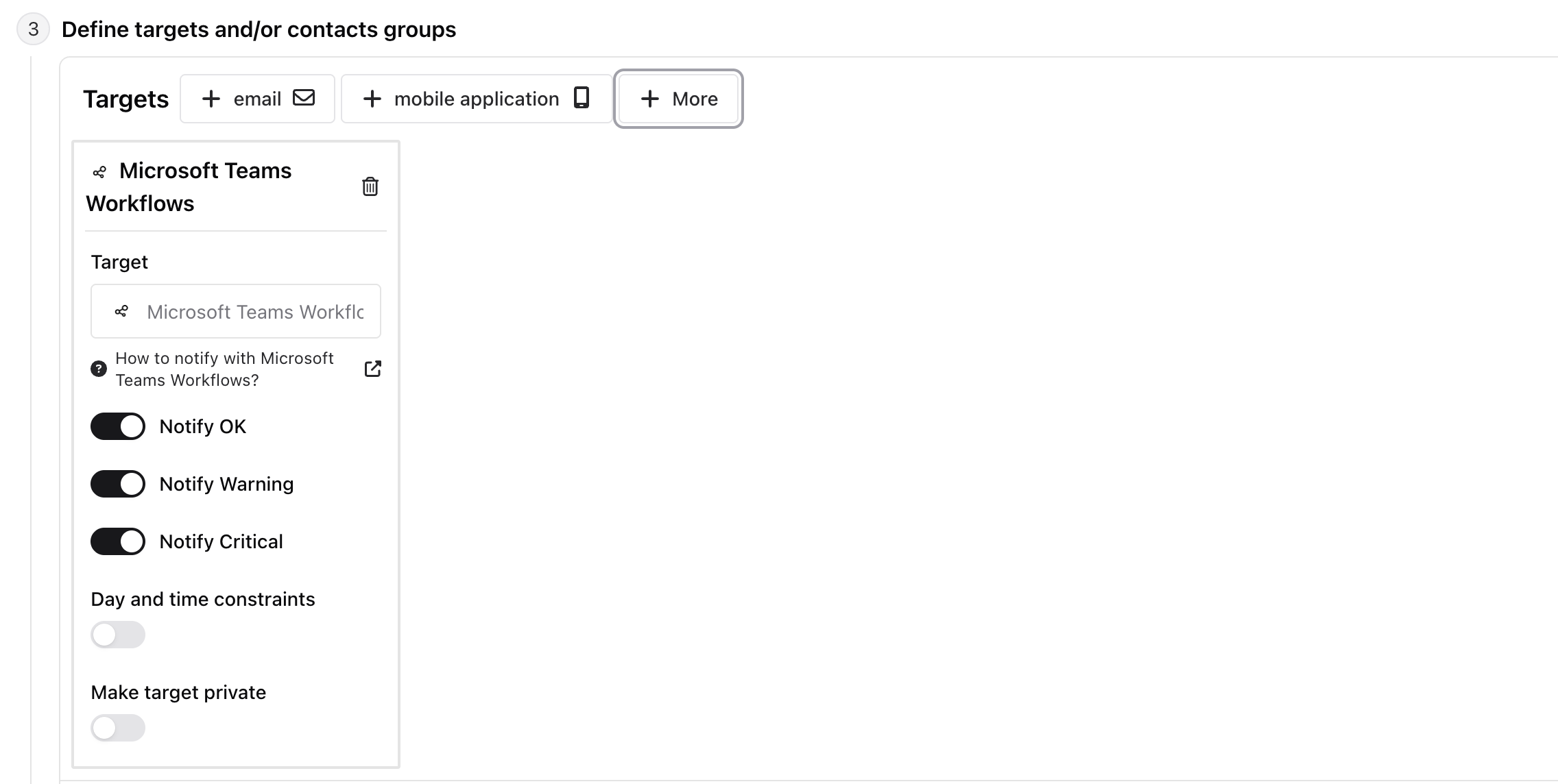
Why Use Workflows?
Section titled “Why Use Workflows?”Microsoft retired Office 365 connectors (the previous “Incoming Webhook” method), so Workflows is now the only supported way to receive external notifications in Teams channels:
- Future-proof: This is Microsoft’s official solution going forward
- More flexible: Workflows can be customized with Power Automate
The legacy Microsoft Teams connector integration has been removed from Bleemeo.
Limitations
Section titled “Limitations”Cards are posted by Microsoft’s Workflows bot, and Microsoft does not allow changing its name or icon. This is a limitation of the Workflows platform itself — the custom name and avatar that Office 365 connectors offered were retired with them. The Bleemeo logo is displayed inside each card instead.
Microsoft also appends a “<user> used a Workflow template to send this card. Get template” line to cards sent by workflows created from a template, like the one above.