

Status Dashboards
On this page you can see a list of status. By default only the ones with problems are displayed.
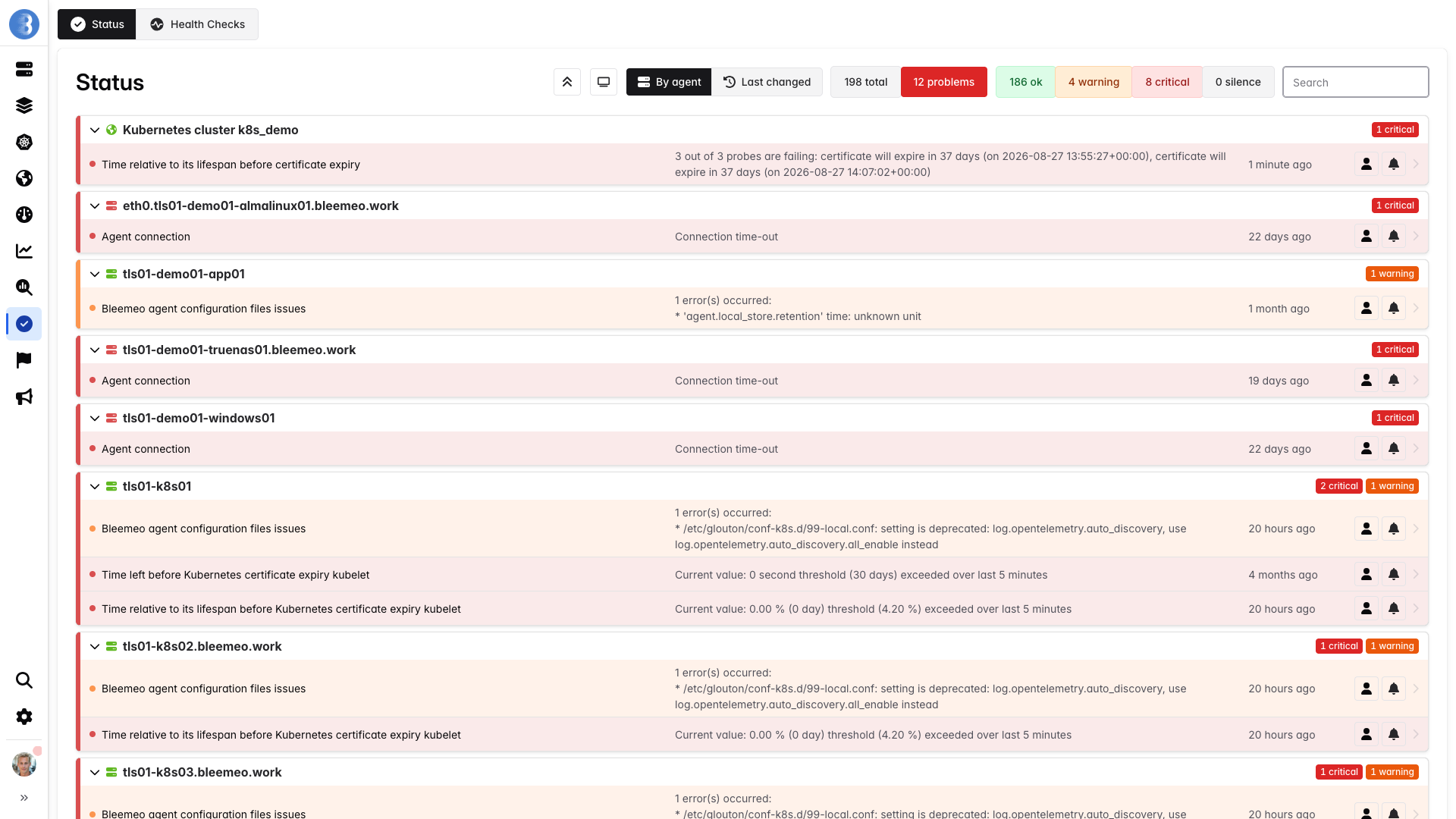
You can filter them by agent’s hostname or name, or display only those with a specific status. The list is ordered by agent’s hostname and entity name.
The columns are:
- the agent’s hostname
- the entity name
- the state (OK, WARNING, CRITICAL)
- a text explaining the problem
- the date of the last change of state for this entity
- silence button
This page is useful to see at a glance which services or servers currently have problems. You can see your status dashboard.
Anomalies
Section titled “Anomalies”The Anomalies tab of the Status section lists the anomalies Bleemeo detected on your servers, newest first. An anomaly is a period where a metric behaves unusually for that time of day or day of the week, without any threshold to configure. You can see your anomalies.
How anomaly detection works
Section titled “How anomaly detection works”Bleemeo learns the daily and weekly rhythm of CPU, memory and swap usage
(cpu_used, mem_used_perc and swap_used_perc) on each server from the last two weeks, and
predicts an expected range for the next 24 hours.
- An anomaly opens when the hourly average leaves the expected range for two hours in a row, and closes after two hours back inside.
- Detection starts once a metric has about a week of history, and skips servers with less than 1 GB of RAM.
- Only servers monitored by the Bleemeo agent are covered.
Anomaly detection depends on your plan. When it is not enabled on your account, the tab explains what it does and, for managers, links to the subscription page.
The anomaly list
Section titled “The anomaly list”Filters at the top of the list:
- Live, 7 days (default) or 30 days: anomalies in progress, or those active during the period
- All or Awaiting feedback: only show anomalies nobody has rated yet
- a search field matching the host name or the metric name
Each anomaly shows:
- the metric and the host, with a link to the host’s dashboard
- whether the metric went above or below the expected range, when it started, how long it lasted, and whether it is still live
- a small chart of the metric around the anomaly, with the expected range shaded. A button opens the host’s dashboard with the period centered on the anomaly
- the first warning or critical alert raised on the same host between the start of the anomaly and two hours after its end, for example Alert 42m later, with a link to the event
Above the list, a summary states how many of the displayed anomalies were followed by an alert, and the median time between the anomaly and the alert.
Feedback and pausing detection
Section titled “Feedback and pausing detection”Managers can answer Was this a real problem? on each anomaly with Yes or No, false alarm, and change their answer later. Repeated false alarms pause detection on that metric.
Managers can also pause detection on a metric from an anomaly. Pausing closes the anomaly in progress, and no new anomaly is raised on that metric until detection is resumed.
The Watched metrics section, at the bottom of the tab, lists every metric under detection, with its server and whether detection is Active or Paused. Managers can pause or resume each one from there.
Anomalies elsewhere in the panel
Section titled “Anomalies elsewhere in the panel”- Line charts show anomalies as shaded bands. Click a band to open the anomaly. In a widget’s menu, the Expected range toggle shades the range the metric was predicted to stay within.
- In the status list, an icon follows the name of a metric with an anomaly in progress.
- The home page shows the anomalies in progress, and the agent page shows those of its server.