
Getting Started with Bleemeo

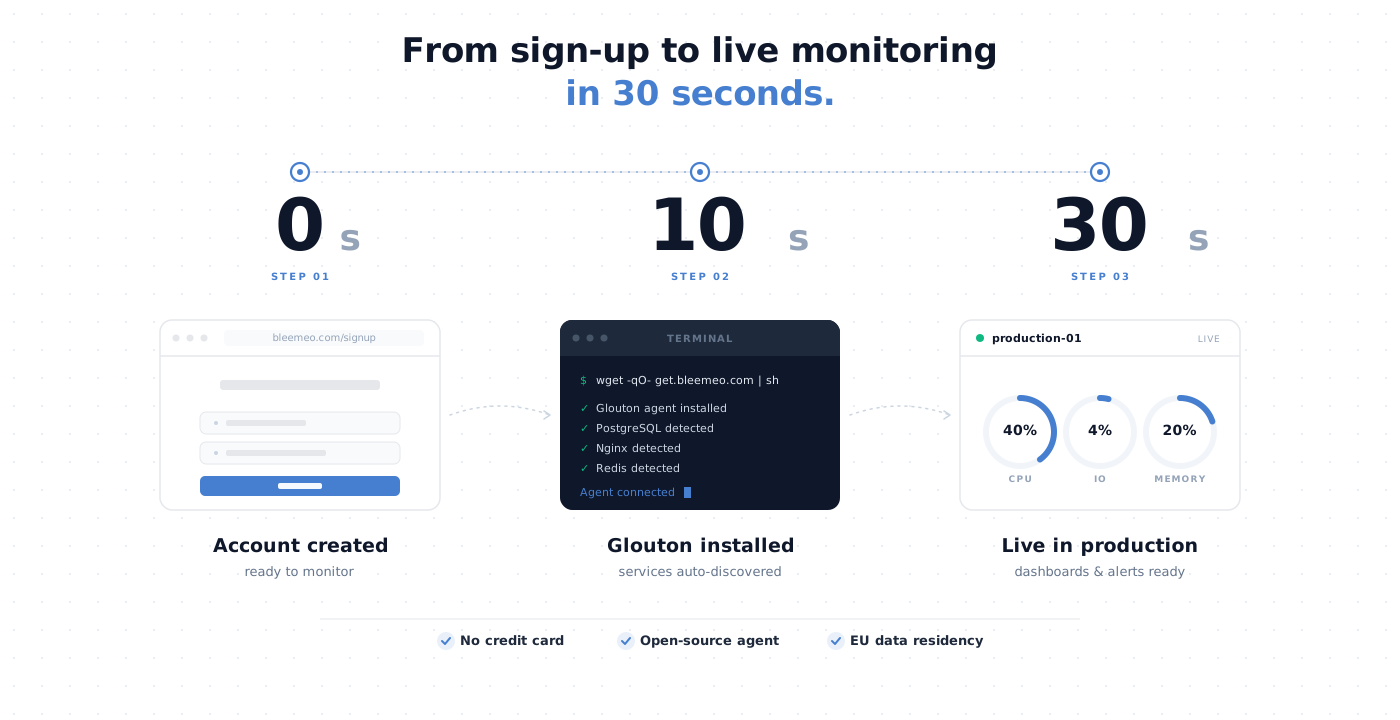
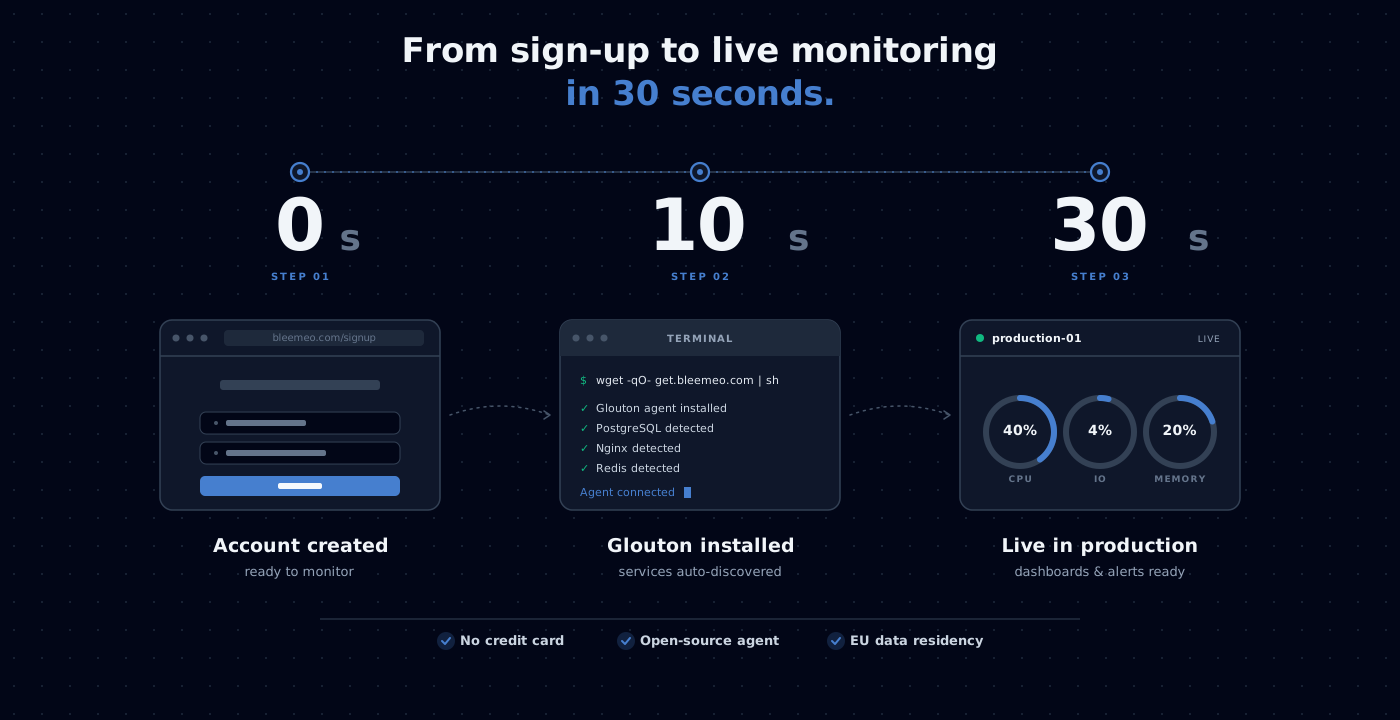
Bleemeo makes infrastructure monitoring simple. Install the agent, and within seconds you’ll have full visibility into your servers, containers, and applications—no complex configuration required.
What Can You Monitor?
Section titled “What Can You Monitor?”Bleemeo automatically discovers services running on your systems and collects relevant metrics. Here’s what you can monitor:
Create Your Account
Start by creating a free Bleemeo account—no credit card required.
- Go to panel.bleemeo.com/signup
- Sign up with your email, or use Google or GitHub for one-click registration
- Verify your email address
Once logged in, you’ll see your personalized installation command on the home page.
Install the Agent
On a Linux or TrueNAS CORE server, run the installation command shown on your dashboard. It looks like this:
wget -qO- "https://get.bleemeo.com?accountId=YOUR_ID®istrationKey=YOUR_KEY" | shThis single command will:
- Add the Bleemeo package repository
- Install and configure the agent for your account
- Start the agent and begin collecting metrics
- Automatically discover services running on your server
For other installation methods (Docker, Kubernetes, Windows), see the detailed installation guide.
Configure Alerts
Bleemeo comes with smart default thresholds for critical metrics like CPU, memory, and disk usage. When thresholds are exceeded, you’ll receive notifications.
Customize your alerting:
- Go to Notifications
- Add notification recipients — see the full list of integrations (email, Slack, Microsoft Teams, PagerDuty, OpsGenie, mobile push, and more)
- Configure which alerts trigger notifications
Invite Your Team
Collaborate with your team by adding users to your account:
- Go to Users Management
- Click the + button and enter their email address
- They’ll receive an invitation to set their password
User roles:
- User — Read-only access to dashboards and metrics (default role)
- Manager — Can manage agents, dashboards, and alerts (but not users)
- Admin — Full access including account settings and user management
Your Dashboard
Section titled “Your Dashboard”Once everything is set up, you’ll have access to a comprehensive dashboard showing the health of your entire infrastructure:
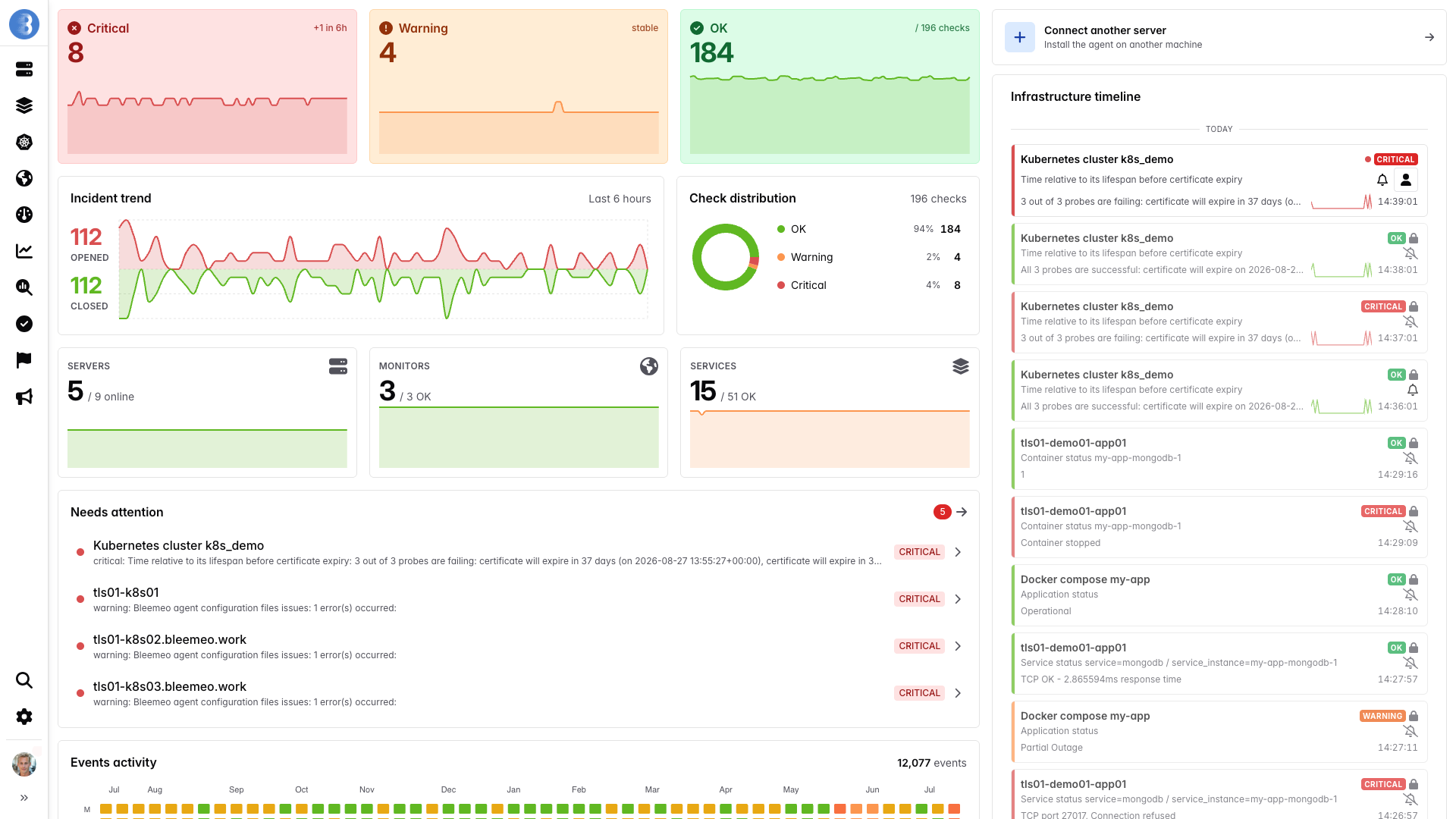
Click any server to drill into its metrics, custom dashboards, and the services Bleemeo automatically discovered. Use the search bar at the top to filter by hostname, service, or tag, and the status indicators to spot anything in alert at a glance.
Next Steps
Section titled “Next Steps”- Alerting — Set up notifications, on-call rotations, and silence rules
- Agent Configuration — Fine-tune agent settings
- Custom Dashboards — Build dashboards for your specific needs
- Uptime Monitoring — Monitor external services and URLs
- Mobile App — Monitor on the go with iOS and Android apps
- Troubleshoot — Diagnose and resolve agent issues