

Azure Monitoring Configuration
-
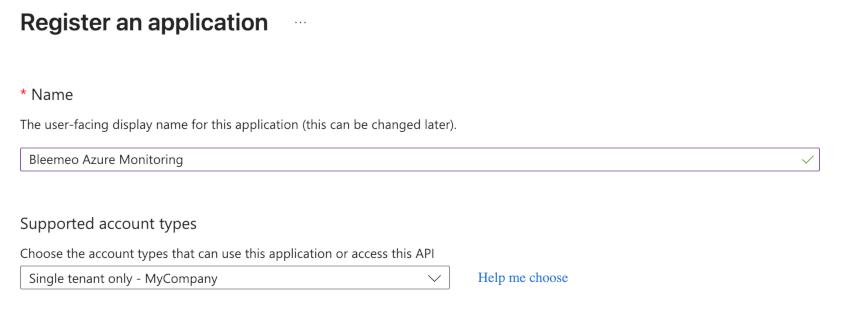
Create an app registration for Bleemeo — In the Azure Portal, go to Microsoft Entra ID > App registrations > + New registration, name it (e.g. “Bleemeo Azure Monitoring”), keep the default Single tenant option, and click Register. See Credentials Reference below for its Client ID and Tenant ID.
-
Register the Microsoft.Insights resource provider — Go to the Subscription you want to monitor > Resource providers, search for Microsoft.Insights, and make sure its status is Registered. If it isn’t, select it and click Register.
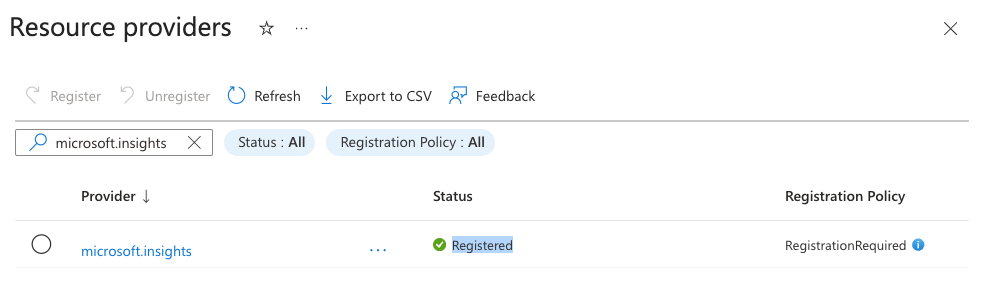
Blocked or greyed out? Ask your Azure subscription admin — you’re missing permissions.
-
Grant the required role — Still on the subscription, go to Access control (IAM) > Add > Add role assignment, and assign the Monitoring Reader role to the app you created, scoped to the subscription.
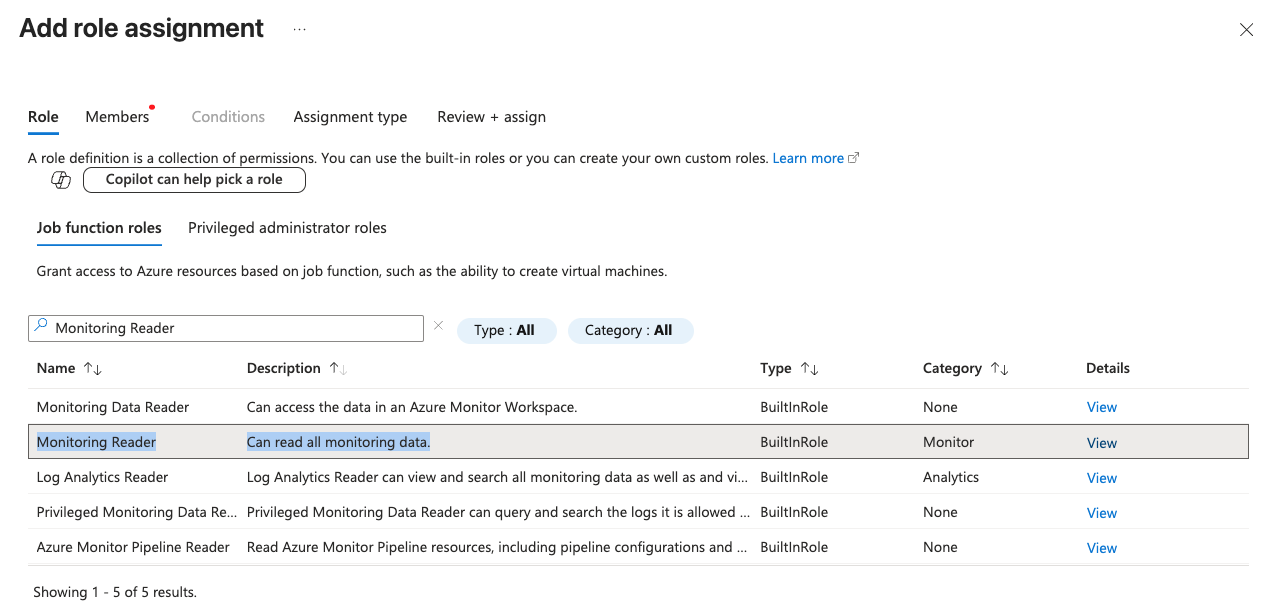
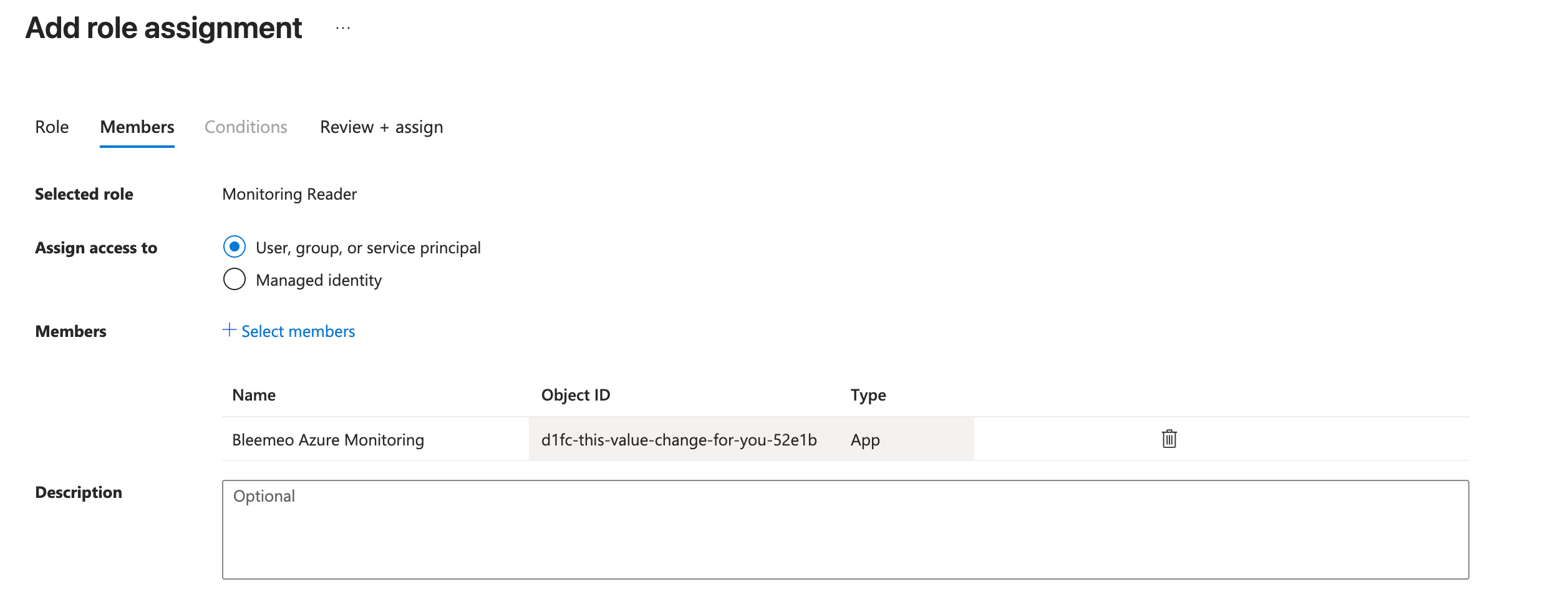
Can’t add a role assignment? Ask your Azure subscription admin — you’re missing permissions.
-
Configure the integration in Bleemeo — Go to the Cloud Provider page in the Bleemeo panel (Administration > Cloud Provider), add an integration and choose Azure, then enter the Tenant ID, Subscription ID, Application (client) ID, and Client secret (see Credentials Reference), and use the toggles to enable the services you want to monitor.
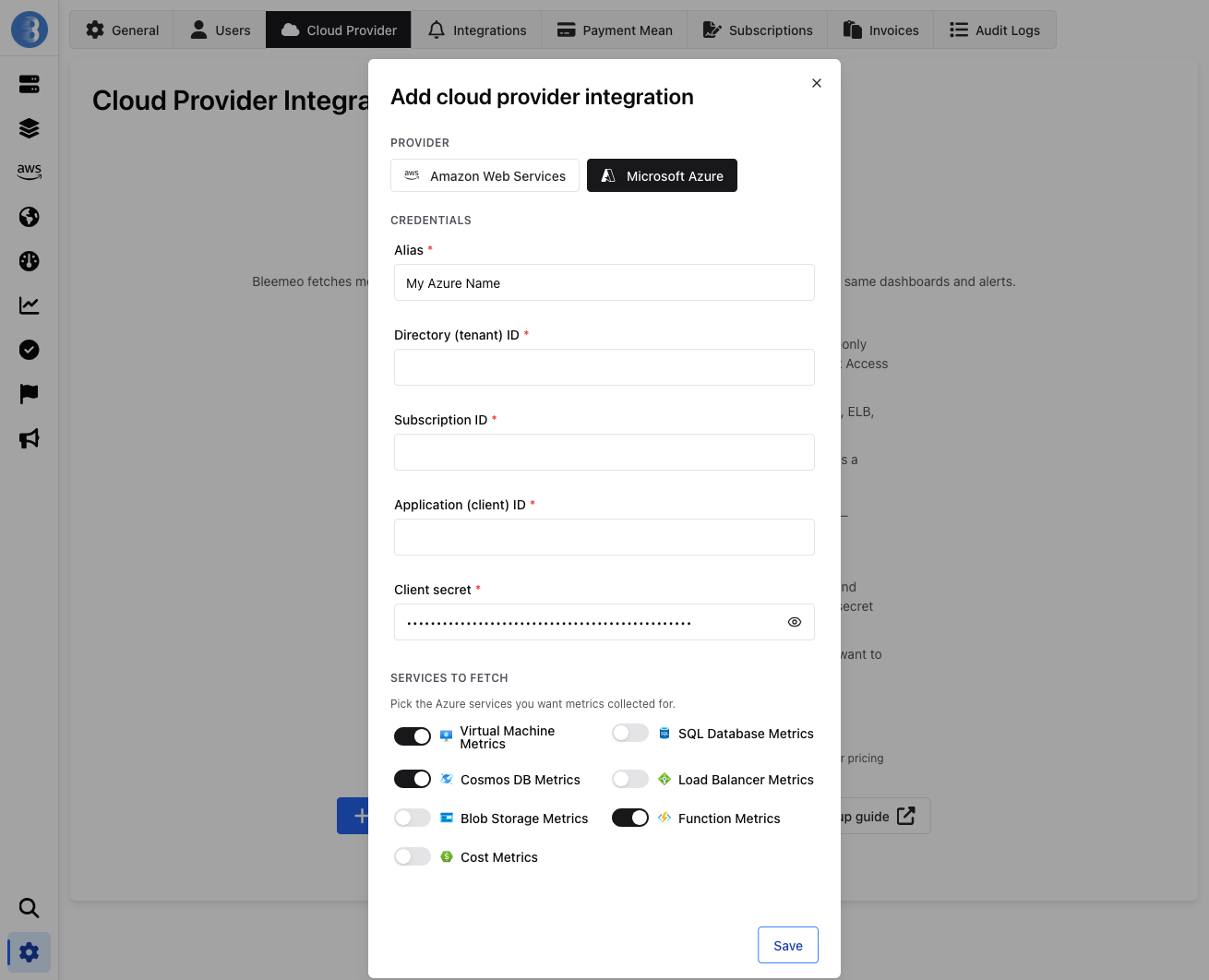
Once configured, Bleemeo automatically discovers your Azure resources across your subscription. Dashboards are created for each service type.
Credentials Reference
Section titled “Credentials Reference”| Field | Where to find it |
|---|---|
| Subscription ID | Azure Portal search bar → type “Subscriptions” → copy the Subscription ID column for the subscription to monitor |
| Tenant ID | Microsoft Entra ID → Overview → copy the Tenant ID field |
| Client ID | Microsoft Entra ID → App registrations → your app → the Application (client) ID shown on the Overview page |
| Client Secret | Microsoft Entra ID → App registrations → your app → Certificates & secrets → New client secret → copy the secret’s Value immediately (it isn’t shown again) |
Permissions Summary
Section titled “Permissions Summary”| Role | Needed for |
|---|---|
| Monitoring Reader | Fetching Azure Monitor metrics, and Cost Management data for the Cost Metrics service |
Service Toggles
Section titled “Service Toggles”Each Azure service can be independently enabled or disabled from the integration’s page in the Bleemeo panel. Disabling a service stops metric collection and API calls for that service.
| Toggle | Documentation |
|---|---|
| Virtual Machine Metrics | VM |
| SQL Database Metrics | SQL Database |
| Cosmos DB Metrics | Cosmos DB |
| Load Balancer Metrics | Load Balancer |
| Blob Storage Metrics | Blob Storage |
| Function Metrics | Function App |
| Cost Metrics | Cost Management |
Resource Discovery
Section titled “Resource Discovery”Bleemeo automatically discovers resources by calling Azure Resource Manager list APIs. When new resources are created in your Azure subscription, they are detected and monitored automatically.
Most services are discovered across the whole subscription in a single API call. Two exceptions:
- SQL Database — one call to list the servers, then one call per server to list its databases. The
masterdatabase is skipped and not monitored. - Blob Storage — one additional call per storage account, to check whether it has at least one container. Accounts with no container are skipped and not monitored.
How resources map to what you see in Bleemeo:
- Per-resource services (VM, SQL Database, Cosmos DB, Load Balancer, Blob Storage, Function App) — each resource found in the subscription is monitored individually
- Cost Metrics — not an Azure resource: Bleemeo creates a single virtual resource (named
Account <subscription>) representing the whole subscription’s cost, with no per-resource discovery needed
Each discovered resource also carries agent facts — resource group, region, tags, instance type and so on — read from the Azure Resource Manager API and refreshed on every discovery pass.
Resource Lifecycle
Section titled “Resource Lifecycle”Turning a service off and deleting a resource are not the same thing:
| What you do | What happens in Bleemeo |
|---|---|
| Turn a service toggle off | Its resources are deactivated. Collection stops, but the resources and their metric history are kept — turning the toggle back on resumes collection. |
| Disable the integration | Its resources are deactivated. Collection stops, but the resources and their metric history are kept — enabling the integration again resumes collection. |
| Delete the resource in Azure | The resource is removed from Bleemeo on the next discovery pass, along with its metric history. This is permanent. |
| Delete the integration | All of its resources and their metric history are removed. This is permanent. |
To pause collection without losing anything, turn the service toggle off or disable the integration.
Estimated Azure Costs
Section titled “Estimated Azure Costs”Azure API calls used to fetch Azure Monitor metrics may incur costs on your Azure bill. Azure Monitor includes a free tier equivalent to approximately $10/month.
Azure Monitor supports querying metrics in batches of up to 50 resources of the same service in the same region, so the billable unit is the batch — not the resource.
| Service | Estimated Cost | Polling Interval |
|---|---|---|
| VM | $0.432/month per batch of up to 50 running VMs (~$0.864/month if any VM in the batch has an attached data disk) | 1 minute |
| SQL Database | $0.432/month per batch of up to 50 databases | 1 minute |
| Cosmos DB | $0.432/month per batch of up to 50 accounts | 1 minute |
| Load Balancer | $0.432/month per batch of up to 50 load balancers | 1 minute |
| Blob Storage | ~$0.02/month per batch of up to 50 storage accounts | 1 hour |
| Function App | $0.432/month per batch of up to 50 Function Apps | 1 minute |
| Cost Management | Free | Daily |
Troubleshooting
Section titled “Troubleshooting”When something is wrong, the integration shows a status message in the Bleemeo panel. Each one points at a specific cause:
| Status message | Cause and fix |
|---|---|
authentication failed: verify your credentials (client id/client secret) |
The Client ID or Client Secret is wrong, or the secret has expired. Check the secret’s expiry date under Certificates & secrets and rotate it if needed — see Client secrets expire. |
permission failed: is the Monitoring Reader role granted ? |
Bleemeo can authenticate but cannot list your resources: the Monitoring Reader role assignment is missing, or it is scoped to a resource group instead of the subscription. Redo step 3. |
permission failed: is the Microsoft.Insights provider registered ? |
Listing works, so the role is fine, but fetching metrics fails — this is almost always the Microsoft.Insights resource provider not being registered on the subscription. Redo step 2. |
your subscription does not have access to Cost Analysis |
Cost metrics only: the subscription’s Azure offer is not supported by Cost Management. See the list of supported offers — no role assignment will work around an excluded offer. |
a temporary error occurred while fetching Cost Management data |
Cost Management returned a transient error, usually throttling. Bleemeo retries within the hour; no action needed. |
Other things worth checking before opening a ticket:
- A resource is missing — Blob Storage accounts with no container and the SQL
masterdatabase are skipped by design, see Resource Discovery. Otherwise, new resources appear on the next discovery pass. - Gaps on a graph — usually normal. Stopped VMs are not polled, and several metrics report nothing without matching activity; each service page documents its own.
- Cost metrics show nothing at all — the Account resource is only created once Cost Management actually returns data for the subscription, see Cost Management.
- Duplicate VM metrics — the Bleemeo agent and the Azure VM integration both report
cpu_usedand friends. Use one or the other, see VM.
See Also
Section titled “See Also”- Overview — supported services and how it works
- Agent Installation — if you also want agent-based monitoring on Azure VMs