

Events
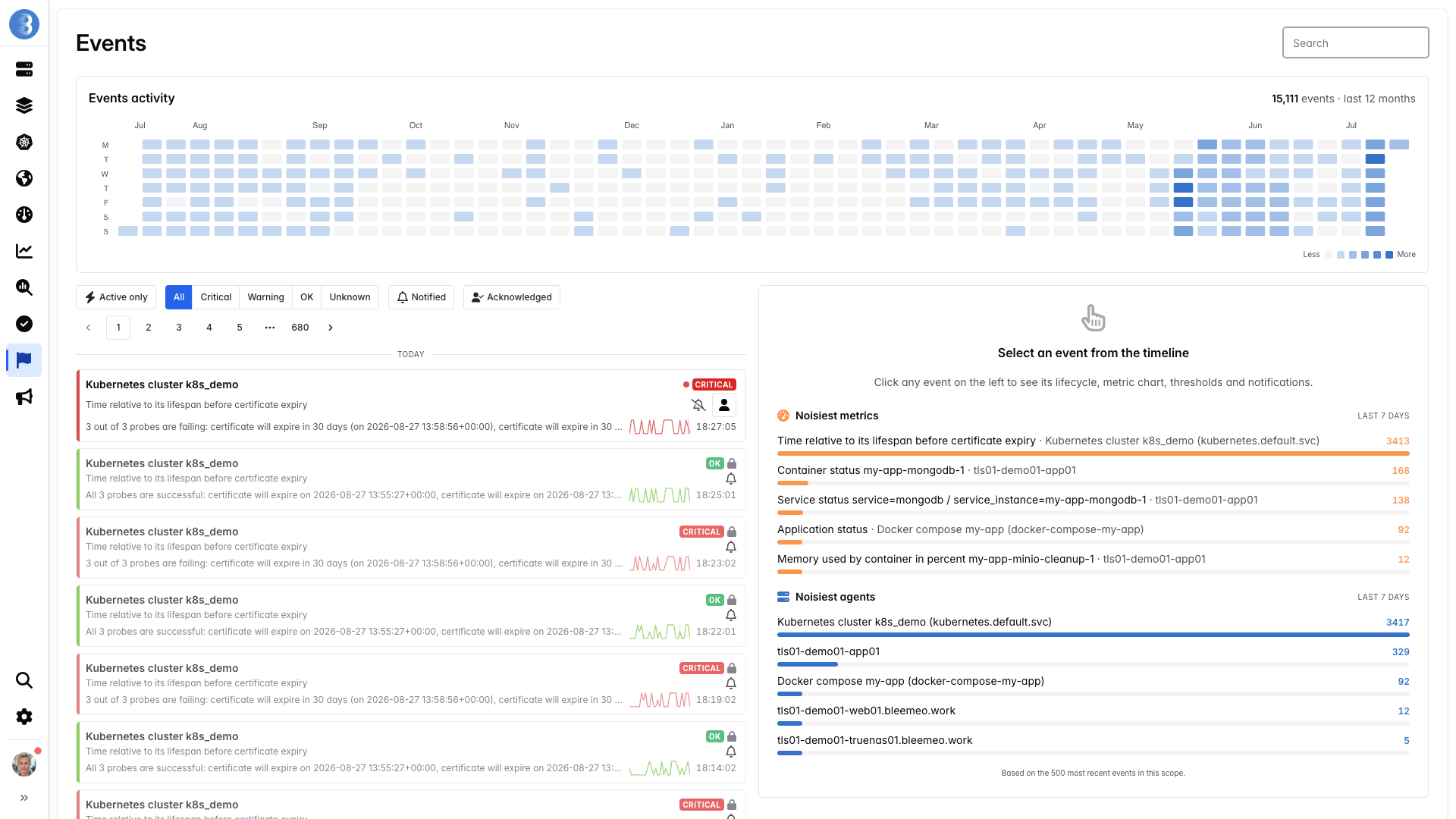
On this page you can see the list of events for the account. You can see your events list.
Finding events
Section titled “Finding events”The list is ordered by time, newest first. To narrow it down:
- The search field matches the title and the text of the events, which name the agent, the service or the metric concerned.
- Active only keeps the events whose thread is still open, that is, whose problem is not resolved yet (see threads).
- The severity buttons (All, Critical, Warning, OK, Unknown) keep only the events with that status.
- Notified and Acknowledged cycle between three states on each click: not filtered, yes (only the events that were notified, or acknowledged) and no (only those that were not).
All the filters are kept in the page URL, so you can share a filtered view with a link.
A heatmap above the list gives you an overview of the number of events per day. Click a day to show only the events of that day.
Event details
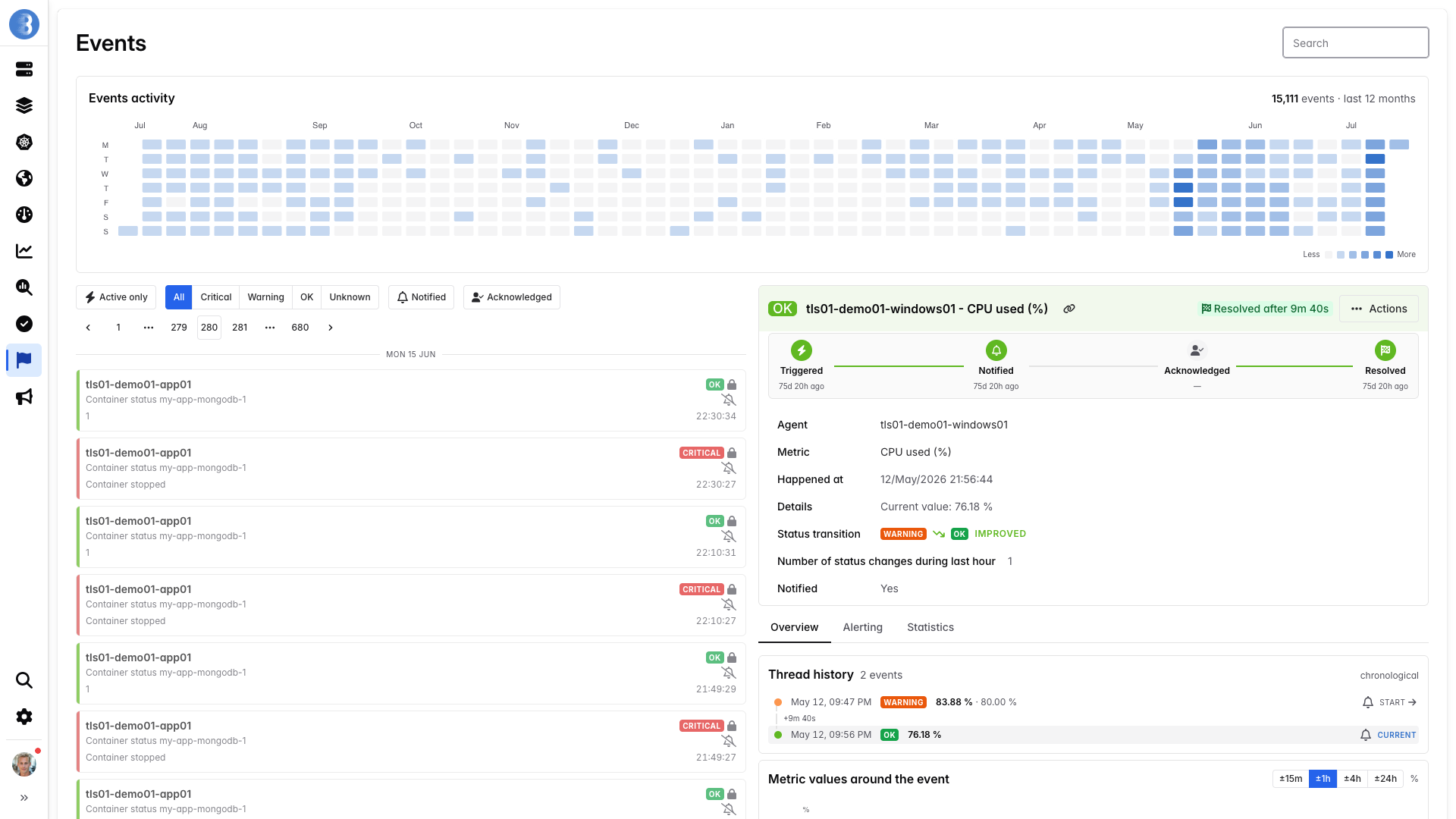
Section titled “Event details”If you click on an event, its details open next to the list.
Summary card
Section titled “Summary card”The card at the top always stays visible. It shows the status of the event, its lifecycle and its duration, then the agent, the metric, when the event happened, the status transition (from which status to which one) and whether it was notified or acknowledged. When a processes snapshot was taken at the time of the event, a link opens it.
From the card you can:
- Move to the previous or next event of the list with the arrows, without going back to the list.
- Copy link to this event to share it.
- Acknowledge an ongoing event, to let your team know someone is handling it. An acknowledged event shows who acknowledged it, and Unacknowledge reverts it. Acknowledging also stops the escalation of an on-call schedule.
- Open the Actions menu, available to managers:
- Silence metric… creates a silence on the metric of the event.
- Edit thresholds… changes the thresholds of the metric. Not offered for status metrics, whose value is the status itself.
- Stop repetition stops the repeated notifications of the event.
The rest of the details is organized in three tabs:
| Tab | Content |
|---|---|
| Overview | The Thread history and a chart of the metric around the event. |
| Alerting | The Thresholds that applied when the event fired, and the Notifications that were sent. |
| Statistics | How often this event happens, and how long it takes to recover. |
Overview
Section titled “Overview”An event belongs to a thread: the successive events of the same metric on the same agent, from the moment it leaves the OK status until it gets back to it. The Thread history lists the events of the thread in chronological order. On a long thread, only the events around the selected one are shown at first; Show earlier events displays the others.
The chart shows the metric around the event. Markers show when notifications were sent (hover one to see the channel and the recipient), and shaded bands show the anomalies detected on the metric, so you can see whether the metric was already behaving unusually before the alert.
Alerting
Section titled “Alerting”- Thresholds lists the low and high, warning and critical thresholds of the metric, highlights the one that matches the status of the event, and tells whether each value is the Default or a Custom one.
- Notifications lists the notifications sent for the event, with their target and whether they were Delivered or Failed. Repeated events can send many notifications: the 20 most recent are shown, and Show older notifications displays the others. The badge next to the title always gives the total count.
This tab is empty for events that returned to OK, or when the metric has no thresholds and the event was not notified.
Statistics
Section titled “Statistics”- Event occurrences: the number of events for this metric on this agent over the previous 24 hours and the previous 30 days, then, for the same metric, the number of events on all agents and per agent over the previous 30 days. The bar of the current event is highlighted.
- Reliability: the Mean Time To Recovery (MTTR), Mean Time To Failure (MTTF) and Mean Time Between Failure (MTBF) of the metric, each shown as a range from the minimum to the maximum with the median and the average.
- For disk usage events (
disk_used_perc), a prediction of when the disk reaches each threshold and 100%, based on its recent growth.