
AWS Monitoring Configuration
To configure the AWS integration:
- Go to the Settings page in the Bleemeo panel
- Open the AWS tab
- Enter your AWS Access Key ID and AWS Secret Access Key
- Use the toggles to enable the services you want to monitor
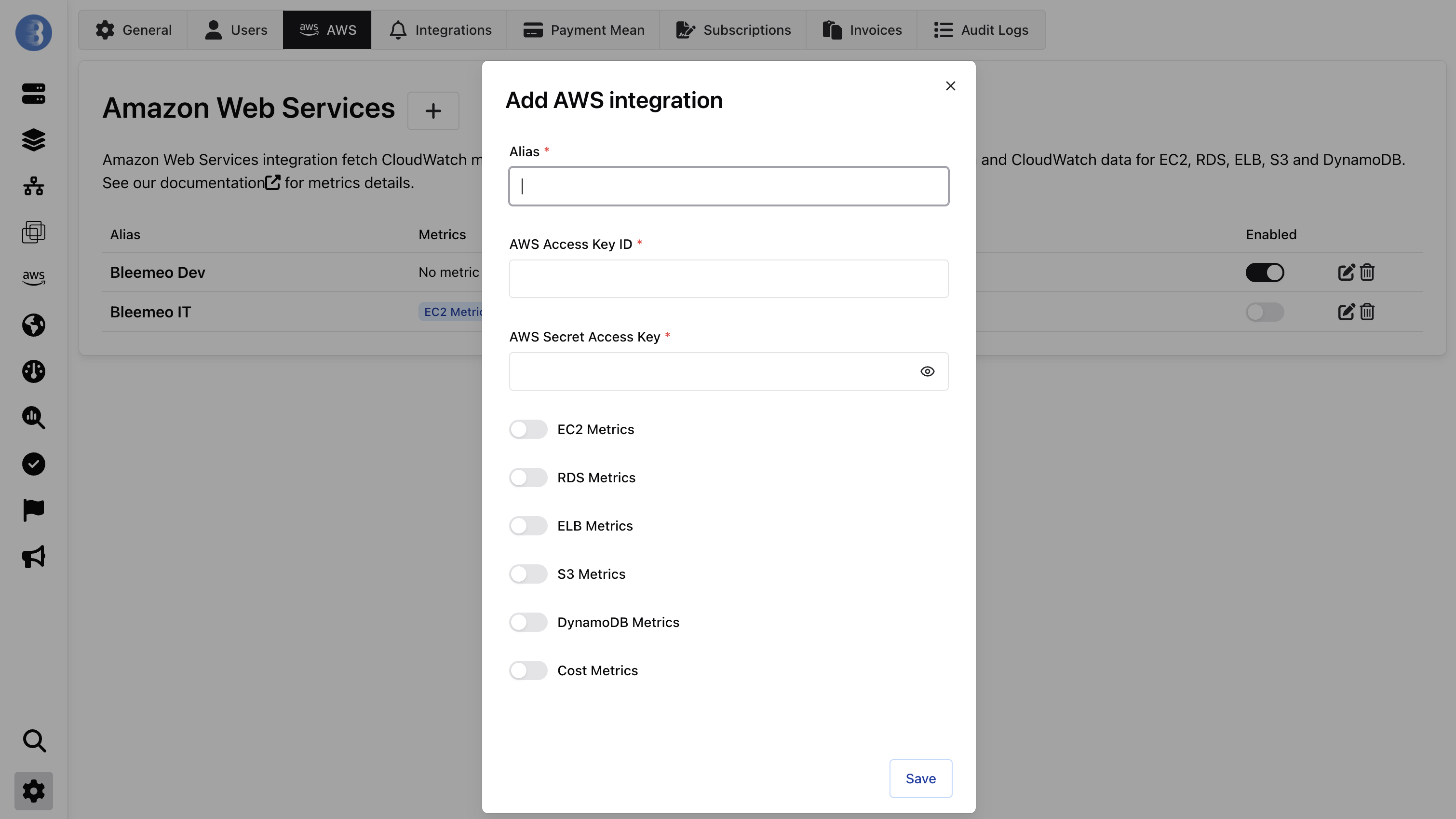
Once configured, Bleemeo automatically discovers your AWS resources across all enabled regions. Dashboards are created for each service type.

IAM Permissions
Section titled “IAM Permissions”Create a dedicated IAM user with programmatic access for Bleemeo. The permissions needed depend on which services you enable.
Refer to the AWS IAM documentation to create API keys and configure permissions.
Full Policy (All Services)
Section titled “Full Policy (All Services)”If you want to enable all supported services, use this combined IAM policy:
{ "Version": "2012-10-17", "Statement": [ { "Sid": "BleemeoCommon", "Effect": "Allow", "Action": [ "cloudwatch:GetMetricStatistics", "ec2:DescribeRegions" ], "Resource": "*" }, { "Sid": "BleemeoEC2", "Effect": "Allow", "Action": [ "ec2:DescribeInstances", "ec2:DescribeVolumes" ], "Resource": "*" }, { "Sid": "BleemeoRDS", "Effect": "Allow", "Action": [ "rds:DescribeDBInstances", "rds:DescribeDBClusters" ], "Resource": "*" }, { "Sid": "BleemeoELB", "Effect": "Allow", "Action": [ "elasticloadbalancing:DescribeLoadBalancers", "elasticloadbalancing:DescribeTargetGroups" ], "Resource": "*" }, { "Sid": "BleemeoDynamoDB", "Effect": "Allow", "Action": [ "dynamodb:ListTables", "dynamodb:DescribeTable" ], "Resource": "*" }, { "Sid": "BleemeoS3", "Effect": "Allow", "Action": [ "s3:ListAllMyBuckets", "s3:GetBucketLocation" ], "Resource": "*" }, { "Sid": "BleemeoLambda", "Effect": "Allow", "Action": [ "lambda:ListFunctions" ], "Resource": "*" }, { "Sid": "BleemeoCostExplorer", "Effect": "Allow", "Action": [ "ce:GetCostAndUsage", "ce:GetCostForecast", "ce:GetSavingsPlansUtilization", "ce:GetSavingsPlansCoverage" ], "Resource": "*" } ]}Minimal Policy (Per Service)
Section titled “Minimal Policy (Per Service)”If you only want to enable specific services, the minimum required permissions are:
| Service | Required Permissions |
|---|---|
| All (always required) | cloudwatch:GetMetricStatistics, ec2:DescribeRegions |
| EC2 | ec2:DescribeInstances, ec2:DescribeVolumes |
| RDS | rds:DescribeDBInstances, rds:DescribeDBClusters |
| ELB | elasticloadbalancing:DescribeLoadBalancers, elasticloadbalancing:DescribeTargetGroups |
| DynamoDB | dynamodb:ListTables, dynamodb:DescribeTable |
| S3 | s3:ListAllMyBuckets, s3:GetBucketLocation |
| Lambda | lambda:ListFunctions |
| Account (Cost Explorer) | ce:GetCostAndUsage, ce:GetCostForecast, ce:GetSavingsPlansUtilization, ce:GetSavingsPlansCoverage |
Service Toggles
Section titled “Service Toggles”Each AWS service can be independently enabled or disabled from the AWS configuration page. Disabling a service stops metric collection and API calls for that service, reducing your CloudWatch costs.
Resource Discovery
Section titled “Resource Discovery”Bleemeo automatically discovers resources by calling AWS describe/list APIs across all enabled regions. When new resources are created in your AWS account, they are detected and monitored automatically.
- Regional services (EC2, RDS, ELB, DynamoDB, Lambda) — discovered per region
- Global services (S3) — discovered once across all regions
- Account-level (Cost Explorer) — no resource discovery needed
Estimated AWS Costs
Section titled “Estimated AWS Costs”AWS API calls used to fetch CloudWatch metrics may incur costs on your AWS bill. AWS CloudWatch includes a free tier equivalent to approximately $10/month.
| Service | Estimated Cost | Polling Interval |
|---|---|---|
| EC2 | $0.70/month per instance (+$0.44 per additional EBS) | 5 minutes |
| RDS | $2.64/month per DB instance | 1 minute |
| ELB | $1.76/month per load balancer | 1 minute |
| DynamoDB | $1.76/month per table | 1 minute |
| S3 | < $0.01/month per bucket | Daily |
| Lambda | $0.80/month per Lambda | 1 minute |
| Cost Explorer | $1.24/month per account | Daily |
See Also
Section titled “See Also”- Overview — supported services and how it works
- Agent Installation — if you also want agent-based monitoring on EC2 instances