
Rocket.Chat
Starter
Professional
Send Bleemeo alerts to your self-hosted Rocket.Chat instance. Perfect for teams that prefer open-source communication platforms with full control over their data.
Learn more about Rocket.Chat1
Create an Incoming Webhook in Rocket.Chat
You’ll need administrator access to your Rocket.Chat instance.
- Navigate to Administration → Workspace → Integrations
- Click + New in the top right
- Select Incoming WebHook
- Configure the webhook:
- Enable the integration
- Name it (e.g., “Bleemeo Alerts”)
- Select the channel to post to
- Set a username for the bot (e.g., “Bleemeo”)
- Save and copy the Webhook URL
For detailed instructions, see Rocket.Chat’s webhook documentation.
2
Create the Integration in Bleemeo (Optional)
If you need multiple Rocket.Chat integrations:
- Go to the Integrations page
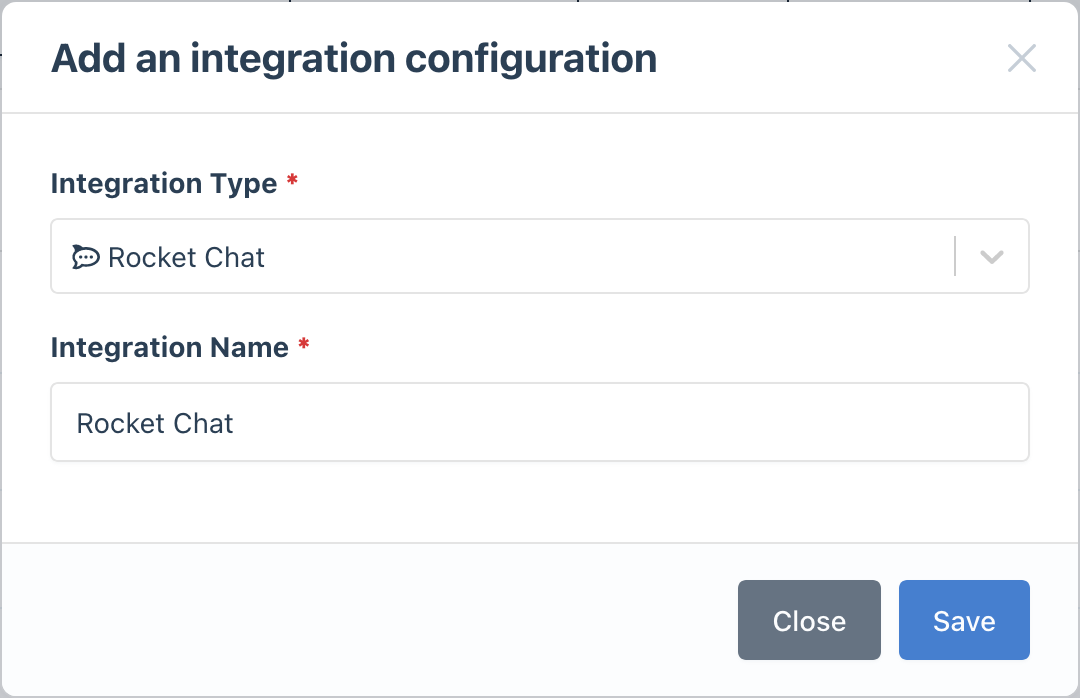
- Click Add Integration and select Rocket.Chat
- Give it a descriptive name
3
Configure Notification Rules
- Go to Notifications
- Create a new rule or edit an existing one
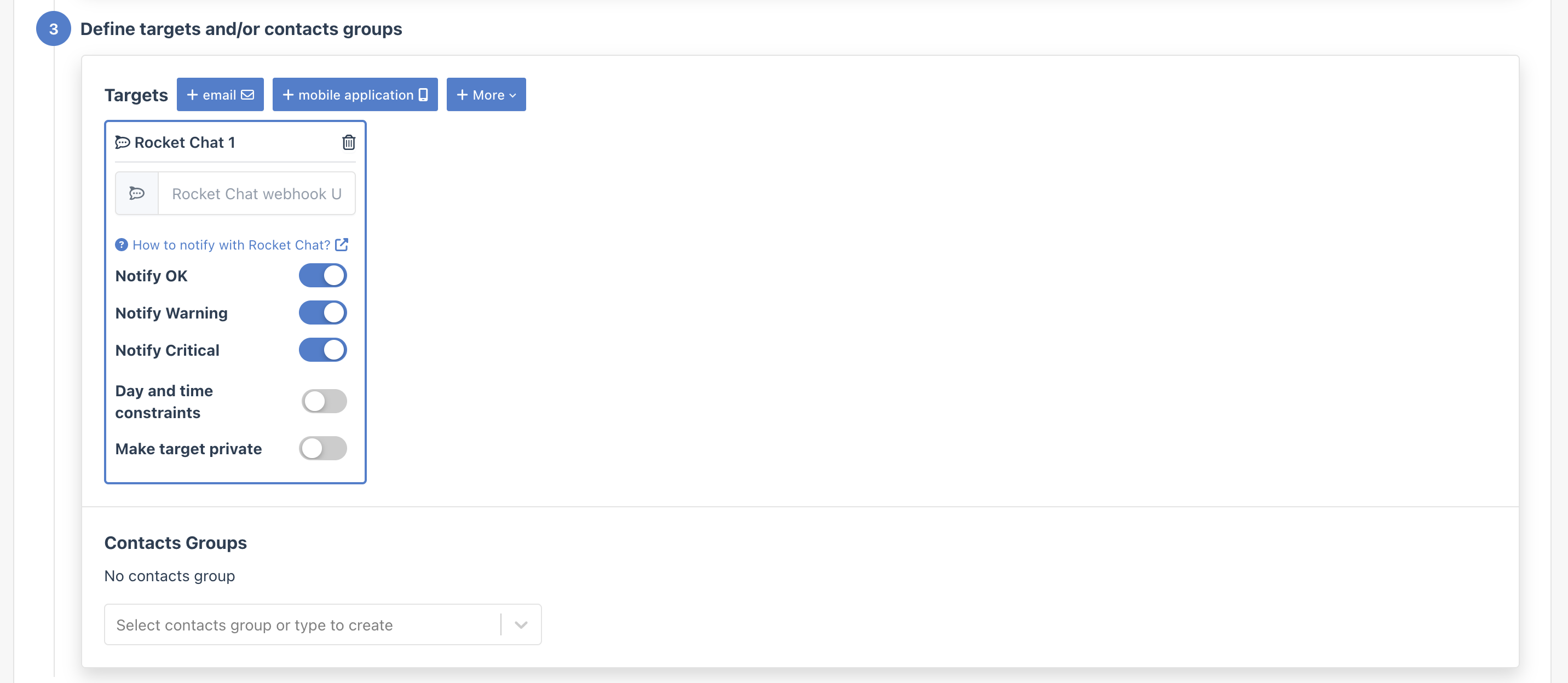
- In the Targets step, select your Rocket.Chat integration
- Paste your webhook URL