
On-Call
On-Call Schedules in Bleemeo automate the rotation of team members responsible for responding to monitoring alerts. They ensure that notifications are always routed to the right person at the right time, eliminating the need to manually update notification targets when on-call duties rotate.
What is an On-Call Schedule?
Section titled “What is an On-Call Schedule?”An On-Call Schedule is a time-based rotation system that defines:
- Who is on-call at any given time
- When their on-call shift starts and ends
- How the rotation cycles (daily, weekly, custom)
- Where notifications should be sent during their shift
Edit On-Call
Section titled “Edit On-Call”The On-Call Schedule editor provides a visual calendar interface to manage your team’s rotation and escalation policies.
Calendar View
Section titled “Calendar View”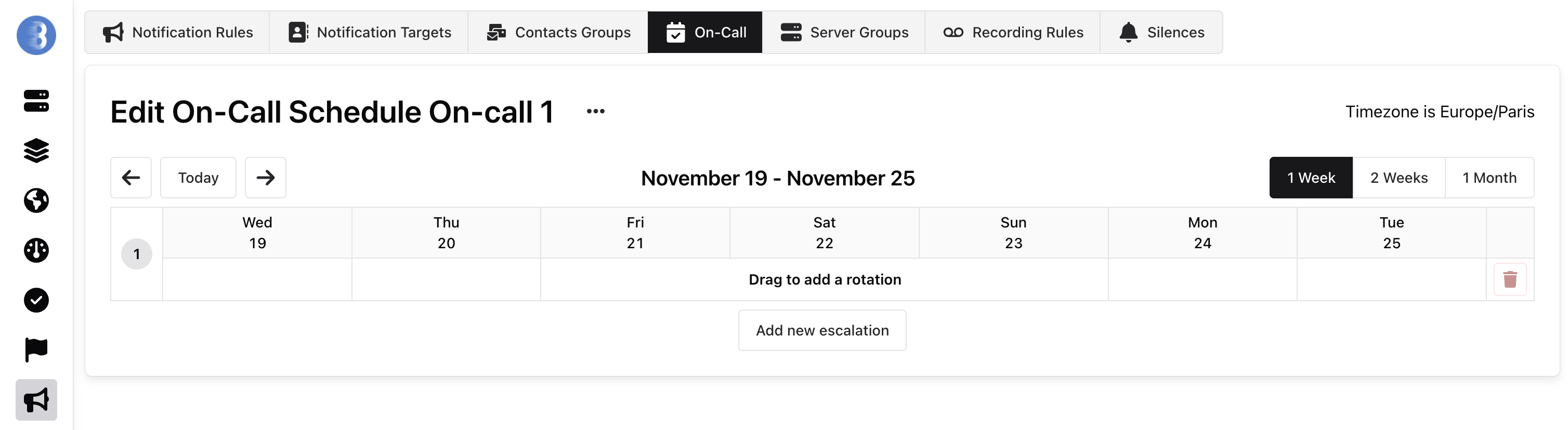
The main interface displays a calendar where you can:
- View weeks or months at a time using the view selector (1 Week, 2 Weeks, 1 Month)
- Navigate through dates using the arrow buttons or “Today” shortcut
- See the configured timezone (displayed in the top-right corner)
- Drag directly on the calendar to add rotations
- Access the “Add new escalation” button to create escalation policies
Managing Rotations
Section titled “Managing Rotations”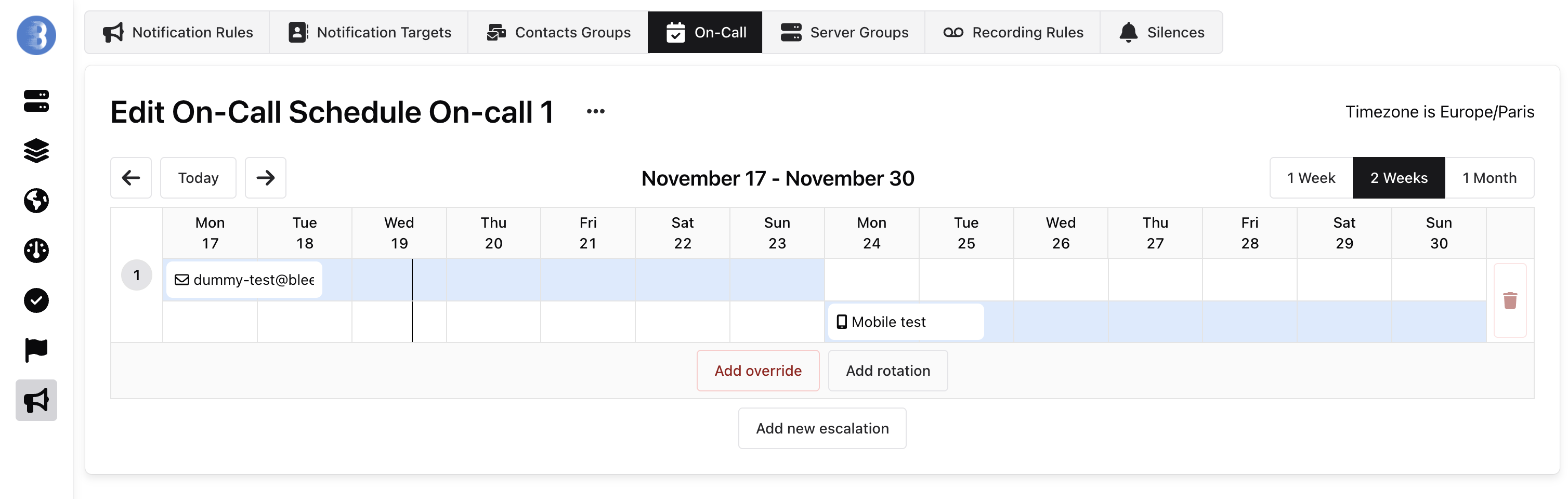
Rotations define who is on-call during specific time periods. You can:
- Add rotations: Drag on the calendar to create a rotation block, then assign a notification target
- View schedules: See all active rotations displayed as colored blocks on the calendar
- Add overrides: Temporarily change who is on-call using the “Add override” button (useful for vacation coverage or schedule swaps)
- Duplicate rotations: Use “Add rotation” to create additional rotation patterns
Each rotation shows the notification target (email, mobile, etc.) and its active time period.
Escalation Policies
Section titled “Escalation Policies”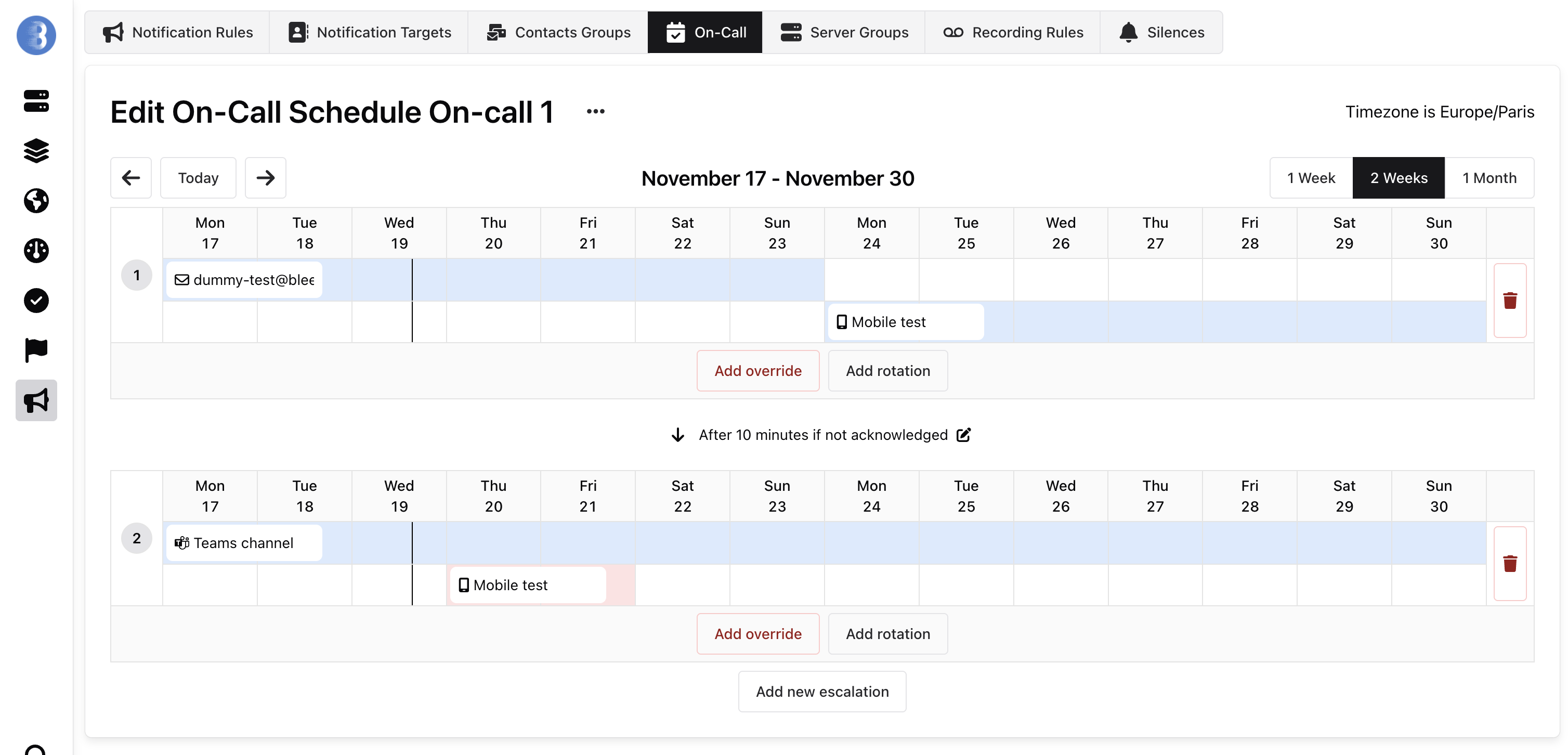
Escalation policies ensure alerts reach someone even if the primary on-call person doesn’t respond. You can configure:
- Escalation triggers: Define conditions like “After 10 minutes if not acknowledged”
- Multiple escalation levels: Create a chain of notifications that progressively reach more people or teams
- Mixed targets: Combine different notification methods (email, mobile, Teams channels, etc.) at each escalation level
In this example, if an alert isn’t acknowledged within 10 minutes, it escalates to a second level notifying both a Teams channel and a mobile contact.