
Dashboards Templates
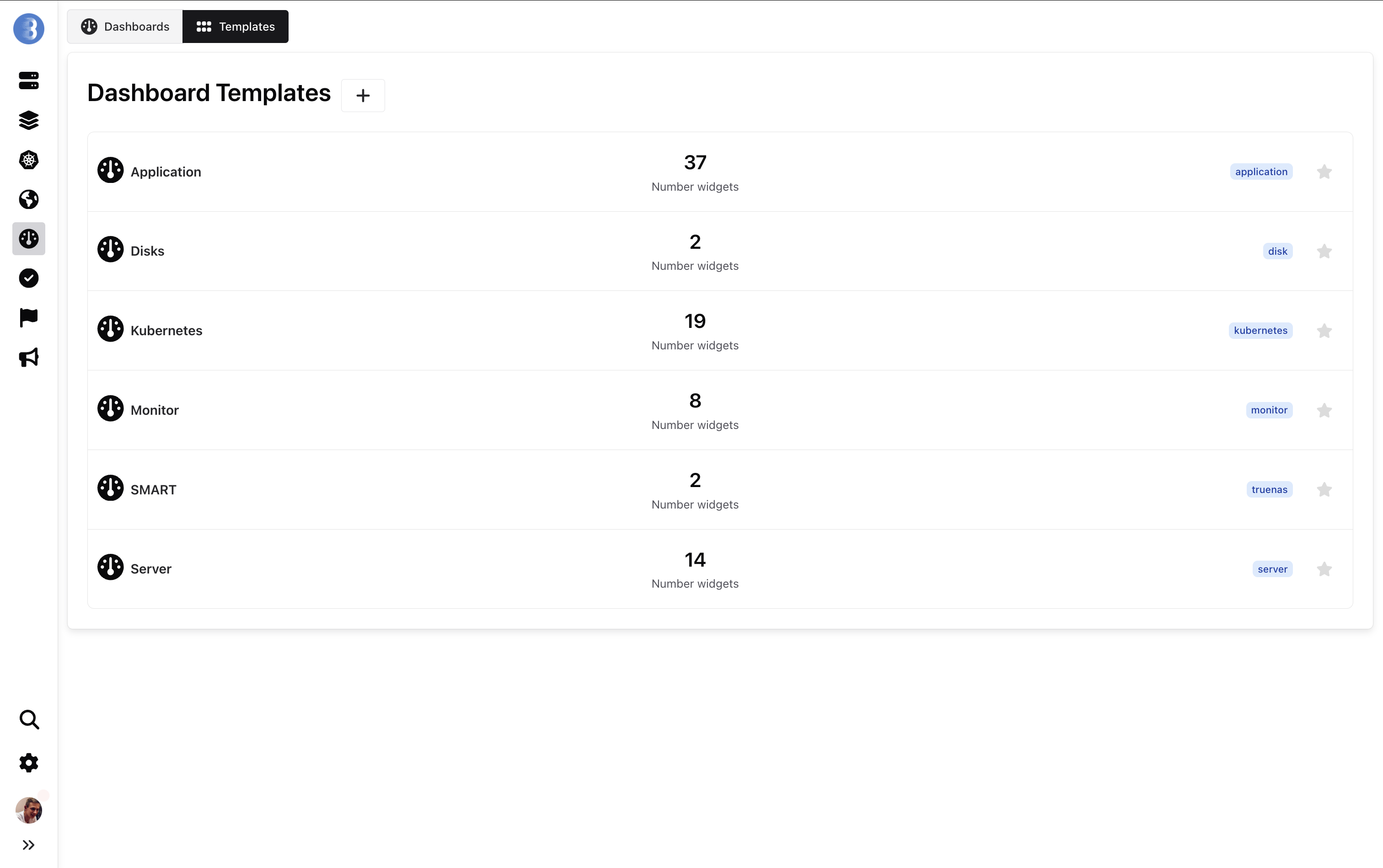
On this page you can see a list of your dashboards templates, create a new one, edit or delete the existing ones.
Default Dashboard
Section titled “Default Dashboard”Each Agent has a tag of its type, for example an agent has tag server, a dashboard template named with "Dashboard server" with tag server is created.
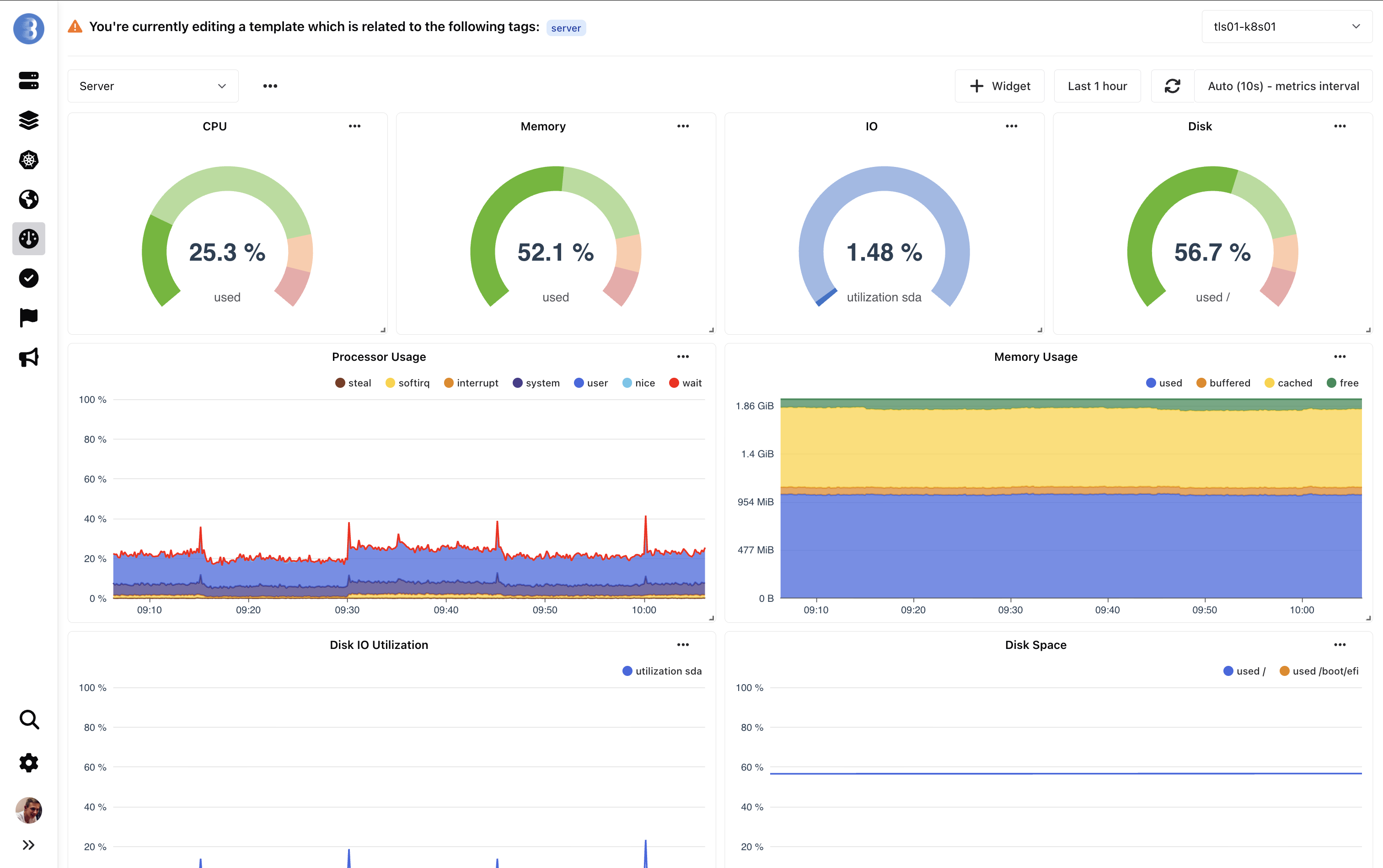
This dashboard is a “system dashboard”, you can modify this in dashboard templates list.
If you modify the default dashboard, all your agents with the Tag server will have their dashboard modified.
Create Dashboard Template
Section titled “Create Dashboard Template”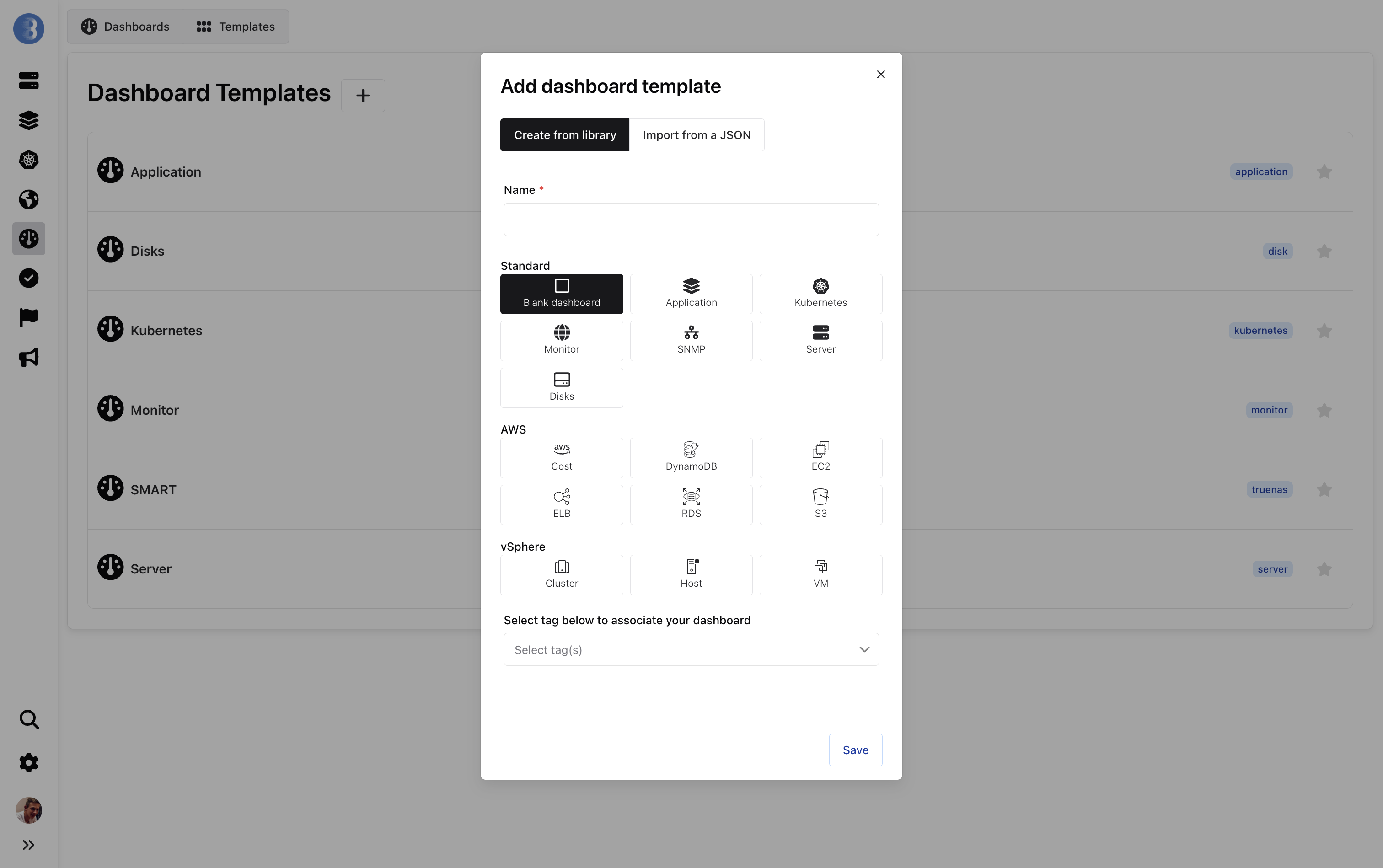
To create a dashboard template, you can choose a template layout to create widgets by default or use a blank layout. Each template layout is used to auto generate dashboard for each agent type.
If you create a dashboard template without a tag it will appear in the list of dashboards for each agent details. But if you choose a tag, the dashboard will be displayed only on agents who have this tag.
In widget, PromQL queries should use $INSTANCE_UUID instead of a specific instance.
Example:
avg_over_time(mem_used{instance_uuid="$INSTANCE_UUID"}[$__interval])$INSTANCE_UUID is replaced automatically by the agent UUID.
You can add tags to a dashboard template, if an agent has one of these tags, the dashboard will be displayed on the agent view.
If my agent has the tags Linux and Docker, and I add the tag Linux on Dashboard template, this dashboard will be displayed in the agent view.
Edit Dashboard Template
Section titled “Edit Dashboard Template”You can click on the edit icon  to edit the widget.
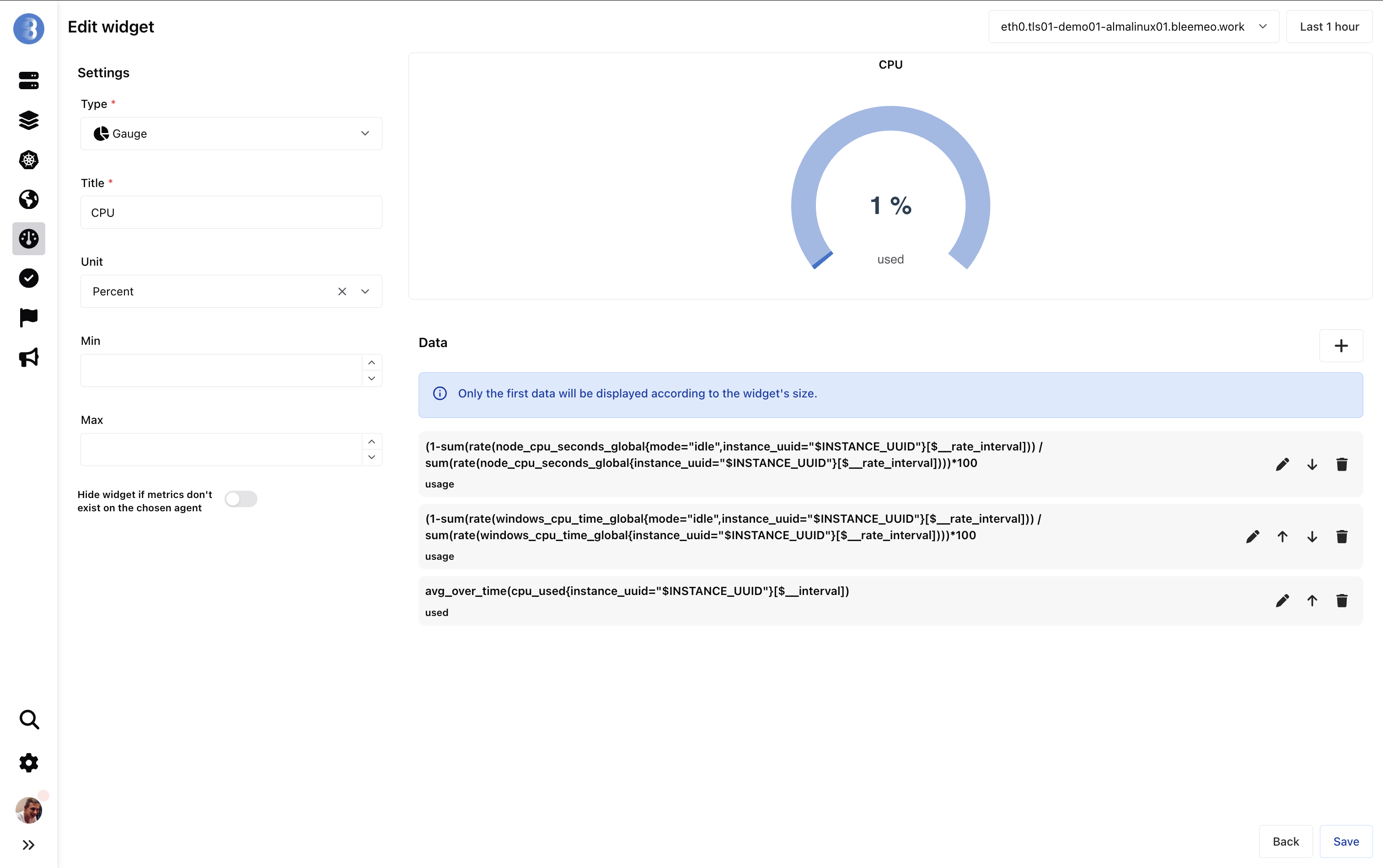
If you want to edit a widget of a dashboard template automatically created, you will see multiple PromQL, one for each OS (Linux, Windows and MacOS), only the PromQL which returns data will be displayed.
Clone Dashboard
Section titled “Clone Dashboard”You can click on the clone icon  to clone the dashboard.
Dashboard cloning works on dashboards and dashboard templates.
This creates an identical dashboard by adding
to clone the dashboard.
Dashboard cloning works on dashboards and dashboard templates.
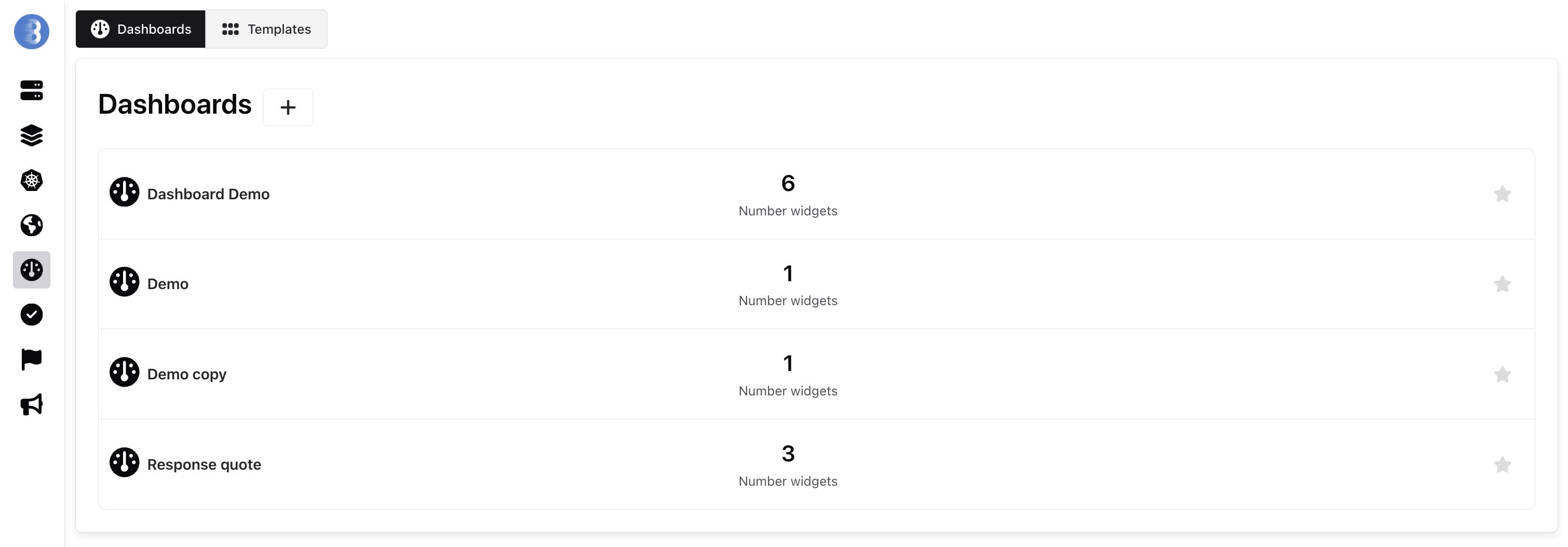
This creates an identical dashboard by adding copy at the end of the dashboard name.
Reset Dashboard
Section titled “Reset Dashboard”You can click on the reset icon  to reset the dashboard.
Dashboard reset only works on dashboard templates.
For example, if a dashboard was created with a
to reset the dashboard.
Dashboard reset only works on dashboard templates.
For example, if a dashboard was created with a server template layout and a user modified widgets in this dashboard,
it’s possible to reset the dashboard to recreate the template layout widgets.