

PagerDuty
Starter
Professional
Automatically create PagerDuty incidents when Bleemeo detects issues. Leverage PagerDuty's on-call schedules, escalation policies, and incident management to ensure the right people respond quickly.
Learn more about PagerDuty1
Get Your PagerDuty Integration Key
In PagerDuty, you need to create an integration to get a routing key:
- Go to Services → Service Directory in PagerDuty
- Select an existing service or create a new one
- Go to the Integrations tab
- Click Add Integration and select Events API v2
- Copy the Integration Key (also called routing key)
For detailed instructions, see PagerDuty’s documentation.
2
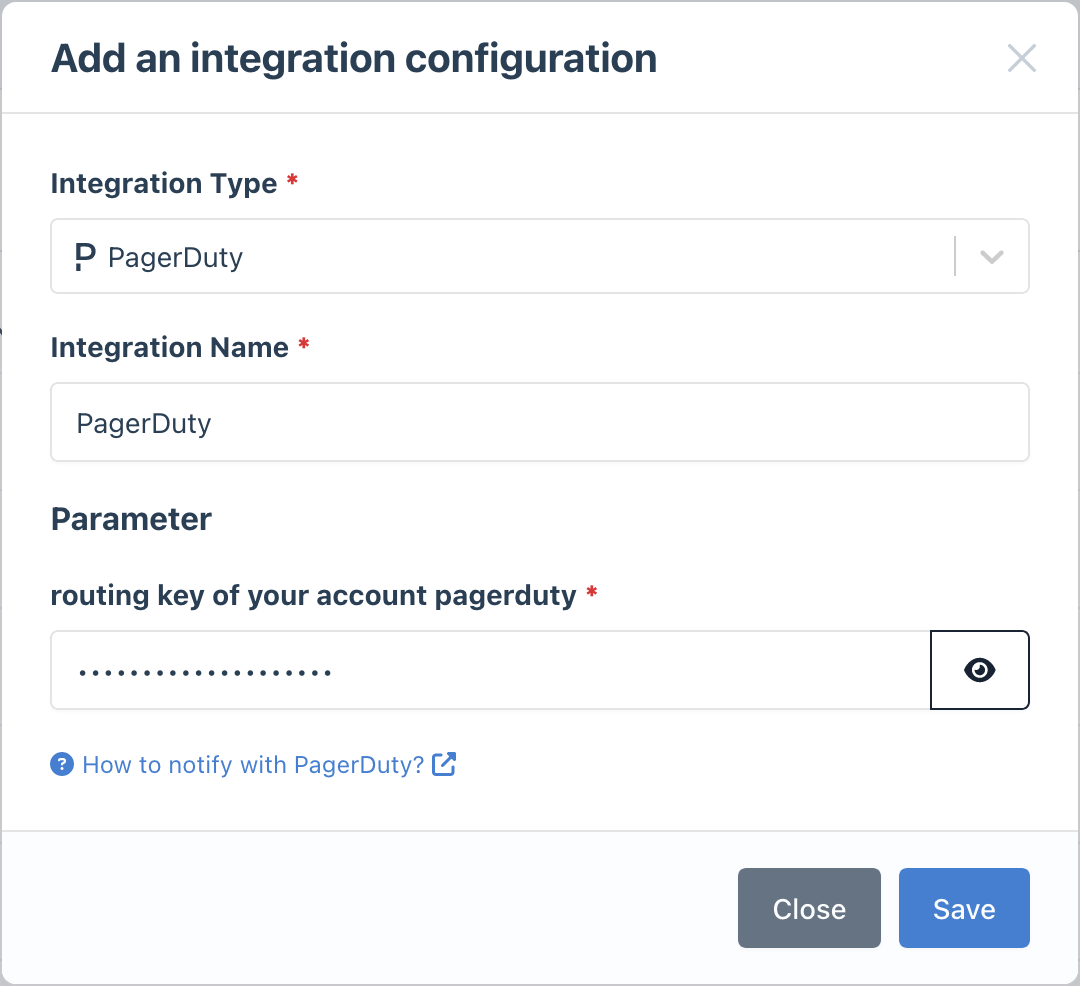
Add the Integration in Bleemeo
- Go to the Integrations page in Bleemeo
- Click Add Integration and select PagerDuty
- Paste your PagerDuty Integration Key
- Give it a descriptive name (e.g., “Production Alerts”)
3
Configure Notification Rules
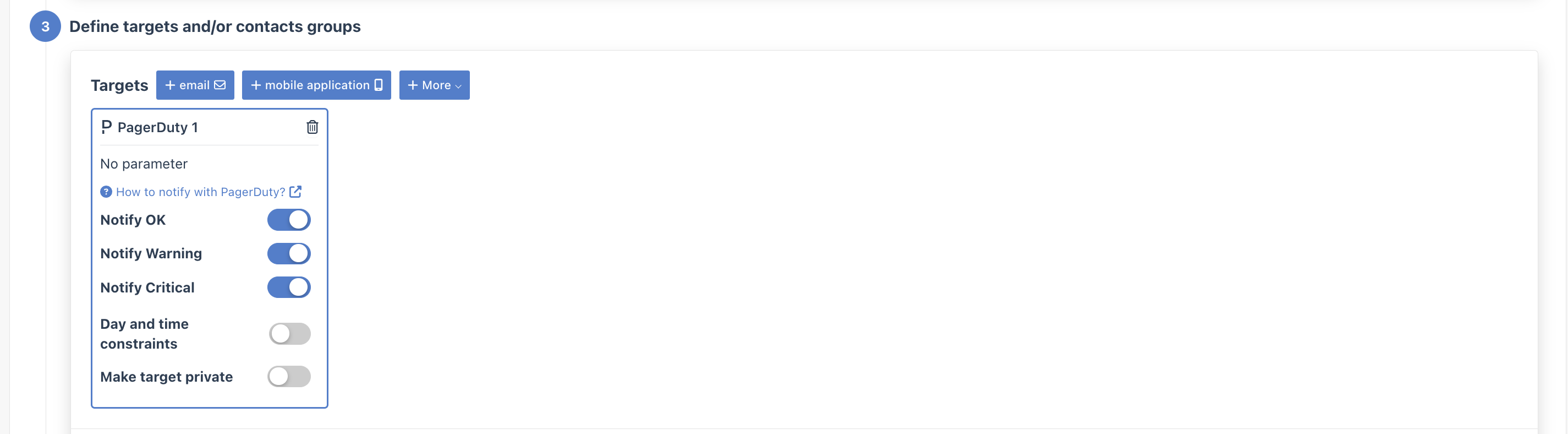
Create rules to send specific alerts to PagerDuty:
- Go to Notifications
- Create a new rule or edit an existing one
- In the Targets step, select your PagerDuty integration
How It Works
Section titled “How It Works”When Bleemeo triggers an alert:
- A new incident is created in PagerDuty
- PagerDuty notifies the on-call responder based on your escalation policy
- When the alert resolves in Bleemeo, the incident is automatically resolved in PagerDuty
This two-way sync ensures your incident timeline stays accurate.