Bleemeo solution uses an agent running on your system. Even if the agent
uses standard tools as much as possible, not all systems meet our requirements.
Bleemeo agent communicates with Bleemeo cloud using HTTPS and MQTT-SSL. Only the agent
initiates the connections. Your firewall needs to allow the agent to open connections
for both protocols :
HTTPS use the TCP port 443 on api.bleemeo.com
MQTT-SSL use the TCP port 8883 on mqtt.bleemeo.com
api.bleemeo.com and mqtt.bleemeo.com are not changing very often, but we don’t have a firm engagement that these IP won’t change in the future.
To install Bleemeo agent with our official install script:
Login to your Bleemeo account and go to the home page.
Run the wget -qO- "https://get.bleemeo.com?accountId=<YOUR_ACCOUNT_ID>®istrationKey=<YOUR_REGISTRATION_KEY>" | sh command on your server. When administrator privileges are required, you will be asked to enter su or sudo password.
Agent is installed and configured for your Bleemeo account. You can check it on the Agent list.
We recommend to use our shell script that handles the installation for you:
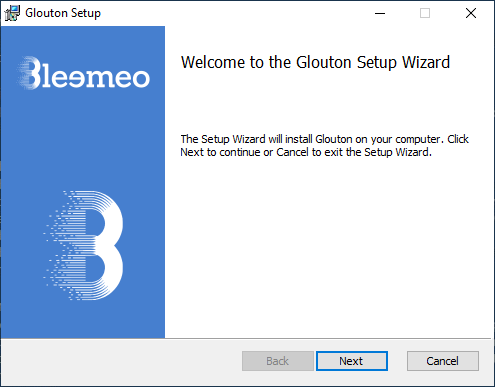
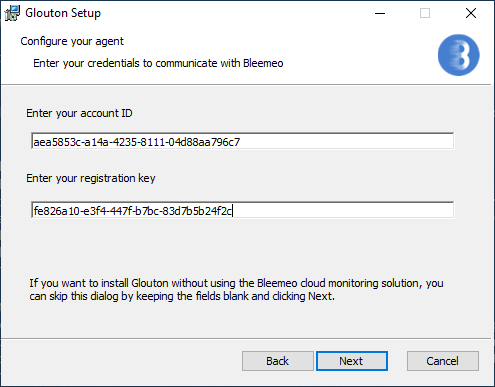
The installer can be run with an option to hide the wizard (this is useful if you are deploying on several servers).
Run the following command as administrator on your server:
We recommend installing agent using the standard method
or following those instructions if you use Docker. But if those methods
don’t fit your needs, see manual method
which explains how to install the Bleemeo agent with standard tools.
Before installing the Bleemeo agent, please check that you meet the system requirements.
Bleemeo Agent is a Docker Certified Container. The Docker Certification program is a framework for partners to integrate and certify their technology to the Docker Enterprise Edition (EE) commercial platform.
To deploy your agent, you may use docker-compose or docker run command.
Before installing the Bleemeo agent, please check that you meet the system requirements.
The agent works with your native packaging tools. For Debian/Ubuntu the agent
uses APT and deb package.
Our agent will need your credentials, get them from
Bleemeo Panel, click on “Connect your first server to Bleemeo platform” and add them to /etc/glouton/conf.d/30-install.conf:
Terminal window
sudomkdir-p/etc/glouton/conf.d
sudotee/etc/glouton/conf.d/30-install.conf<<EOF
bleemeo:
account_id: YOUR_ACCOUNT_ID
registration_key: YOUR_REGISTRATION_KEY
EOF
sudochmod640/etc/glouton/conf.d/30-install.conf
Our package repository is signed with the following GPG key:
The agent works with your native packaging tools. For CentOS the agent
uses rpm packages.
Our agent will need your credentials, get them from
Bleemeo Panel, click on “Connect your first server to Bleemeo platform” and add them to /etc/glouton/conf.d/30-install.conf:
Before installing the Bleemeo agent, please check that you meet the system requirements.
The agent works with your native packaging tools. For Fedora the agent
uses rpm packages.
Our agent will need your credentials, get them from
Bleemeo Panel, click on “Connect your first server to Bleemeo platform” and add them to /etc/glouton/conf.d/30-install.conf:
The agent works with your native packaging tools. For RHEL the agent
uses rpm packages.
Our agent will need your credentials, get them from
Bleemeo Panel, click on “Connect your first server to Bleemeo platform” and add them to /etc/glouton/conf.d/30-install.conf:
In the above code, make sure to change “7” with your current RHEL version. You can see the version from the
file /etc/redhat-release or /etc/os-release.
Finally install Bleemeo agent package:
Terminal window
sudoyum-yinstallbleemeo-agent
To enable the optional auto-upgrade feature of Bleemeo agent:
By default when installing the Bleemeo agent, it will immediately start
and register itself with the Bleemeo Cloud platform. However this is not wanted when the Bleemeo agent
is installed while creating a cloud image (for example an AMI with AWS). In this case
the agent should only start and register once the image is used to create a new machine.
To address this use case, the installation script allows to install the Bleemeo agent
and avoid its startup and registration while still running on same machine used to create
the cloud image.
Take the wget [...] | sh command and add &cloudimageCreation=1 to the parameters.
Run the resulting wget -qO- "https://get.bleemeo.com?accountId=<YOUR ACCOUNT_ID>®istrationKey=<YOUR_REGISTRATION_KEY>&cloudimageCreation=1 | sh command on your server. When administrator privileges are required, you will be asked to enter su or sudo password.
The Agent is installed but won’t start while still running on the same machine. It will only start and register
itself for each new machine created from the image.